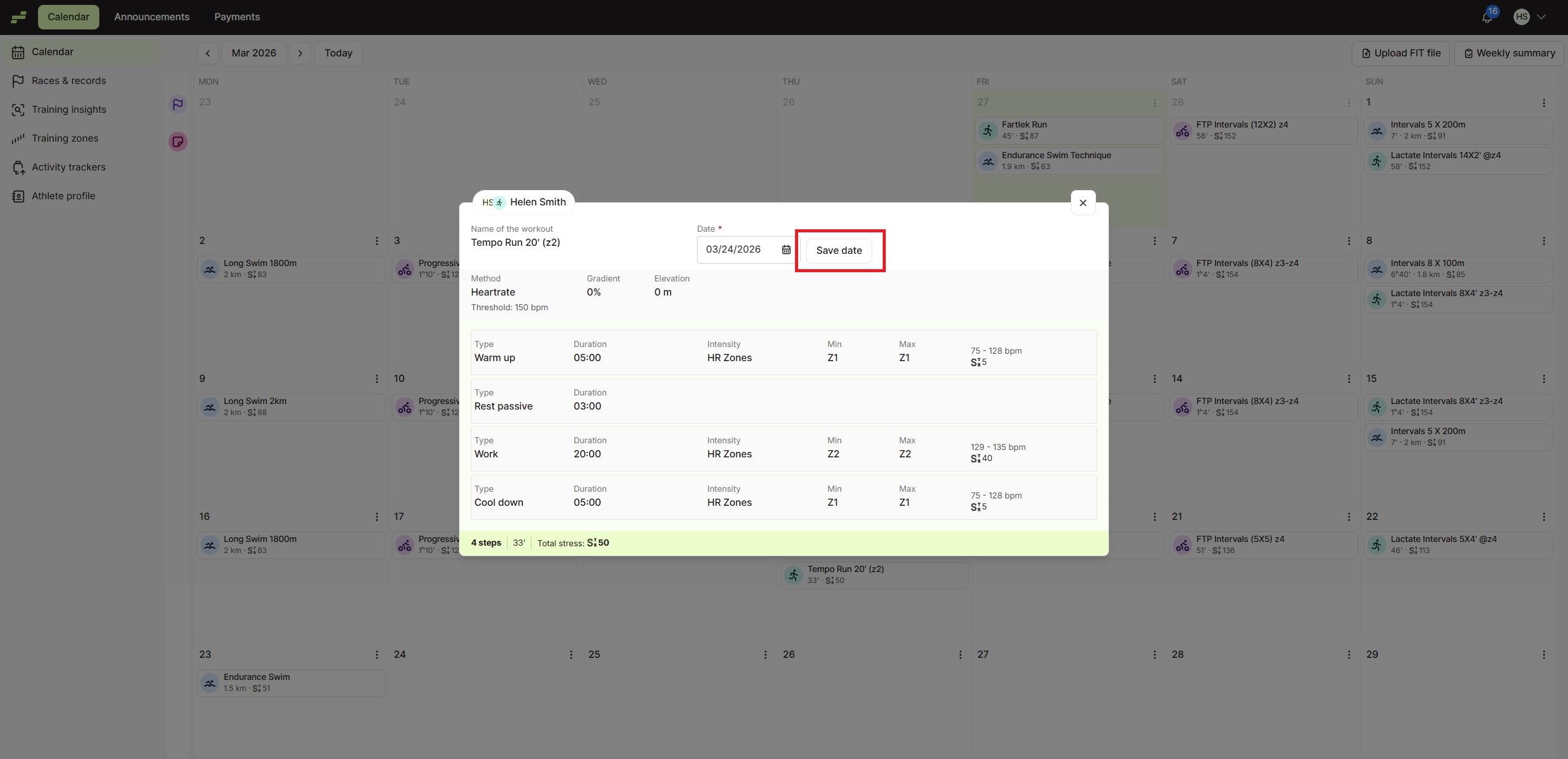
If you need to reschedule a workout in EndoGusto, you can easily move it to another date directly from your calendar.
Follow these steps:
How to Change a Workout Date in the PWA (Mobile)
Step 1: Open the Calendar
Go to Calendar and tap on the workout you want to move.
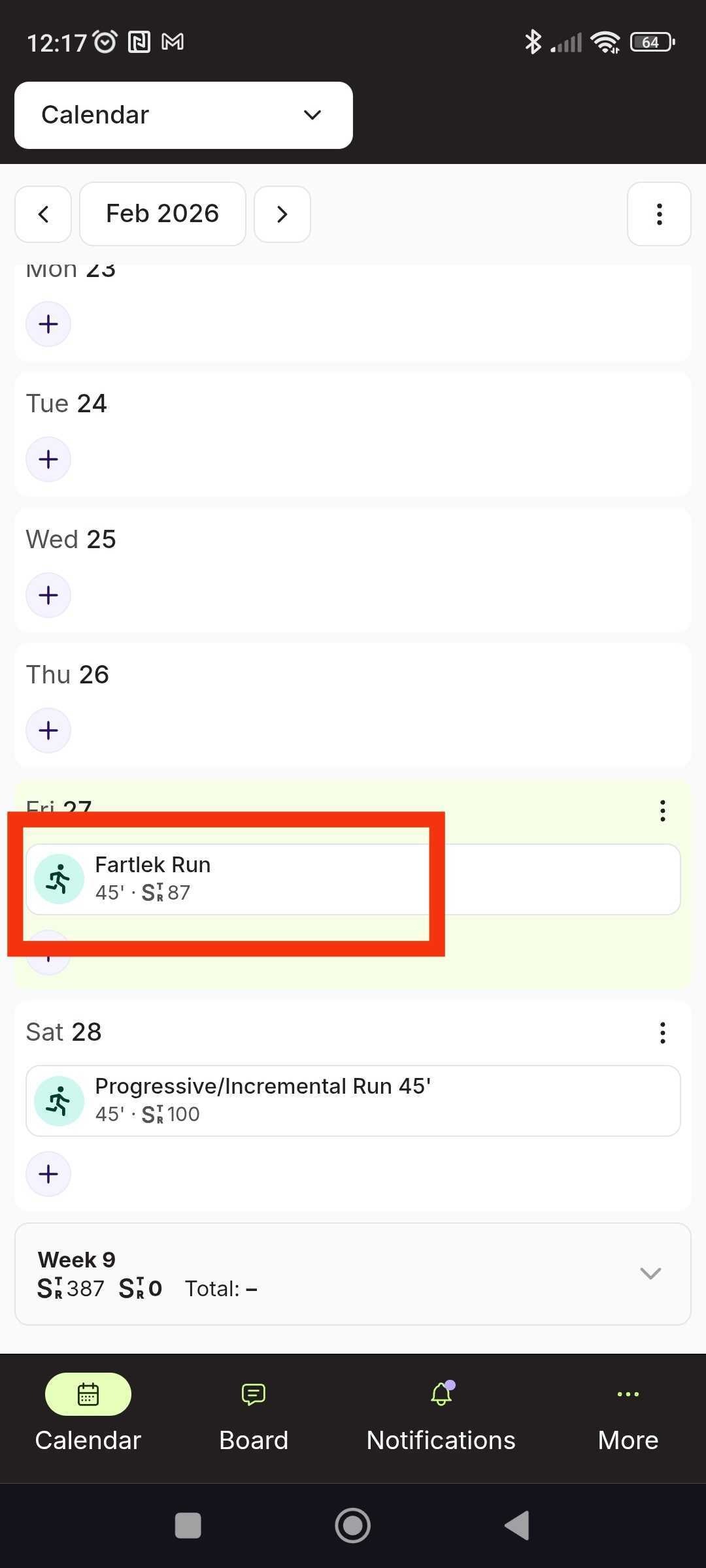
Step 2: Tap “View planned”
Inside the workout preview, tap “View planned”.
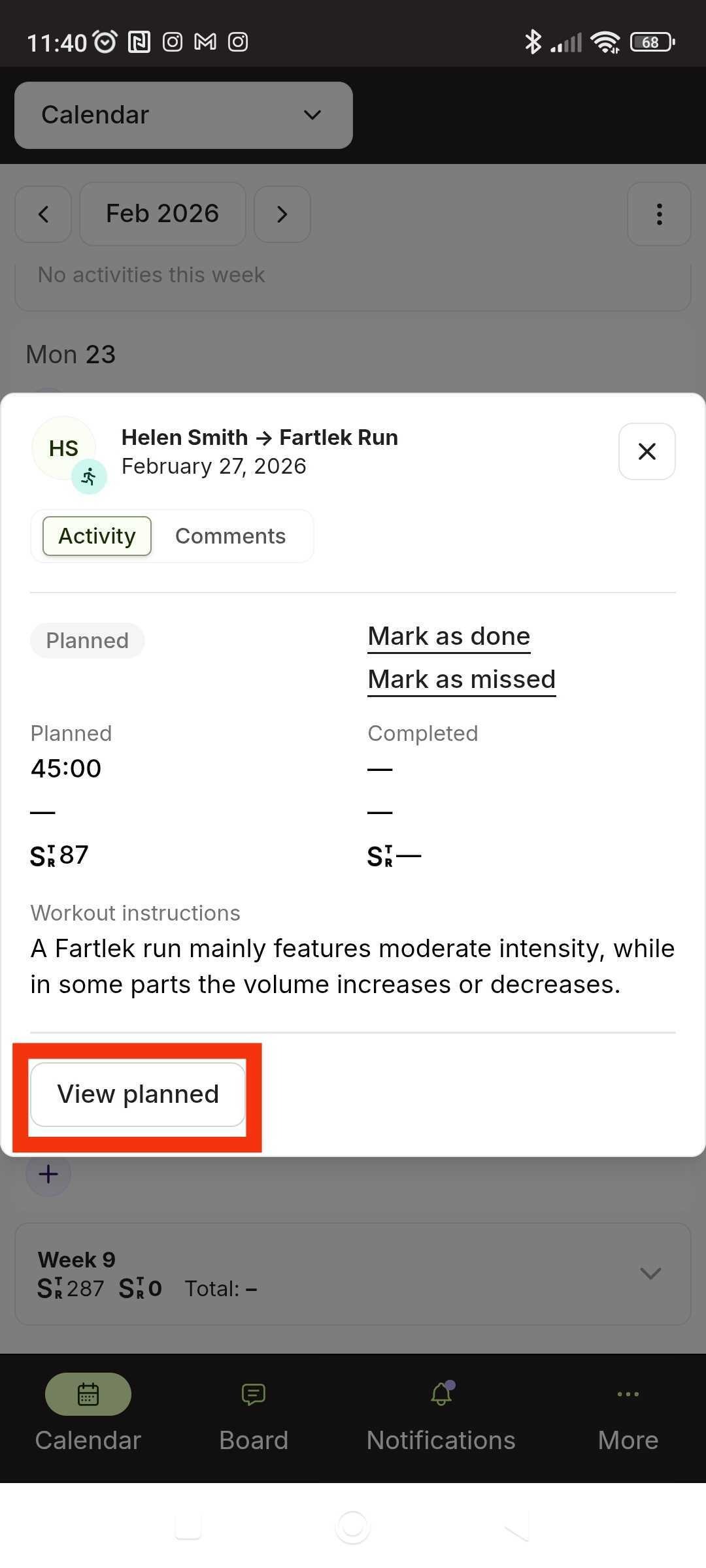
Step 3: Tap on the Date Field
At the top of the workout details, tap on the Date field.
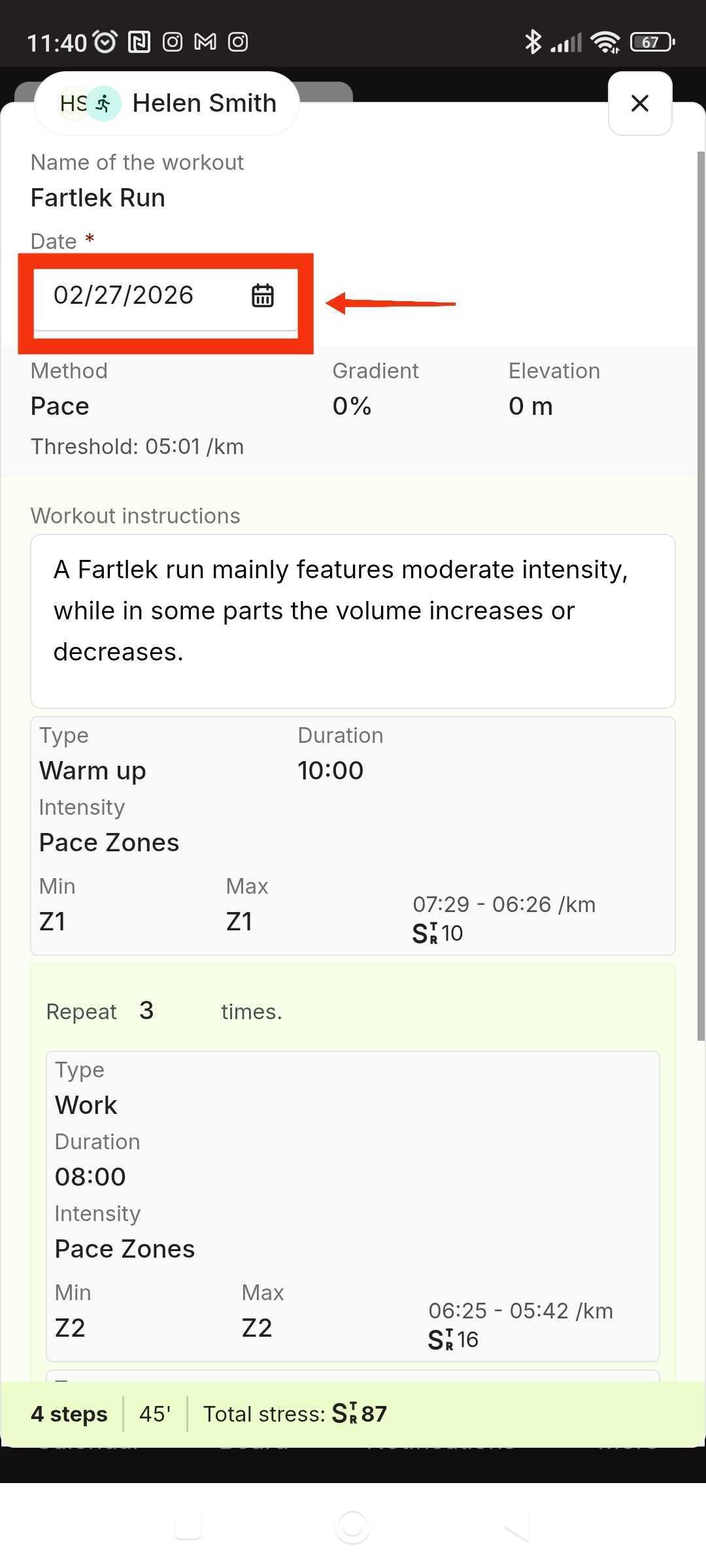
Step 4: Choose the New Date
Select the new date from the calendar picker.
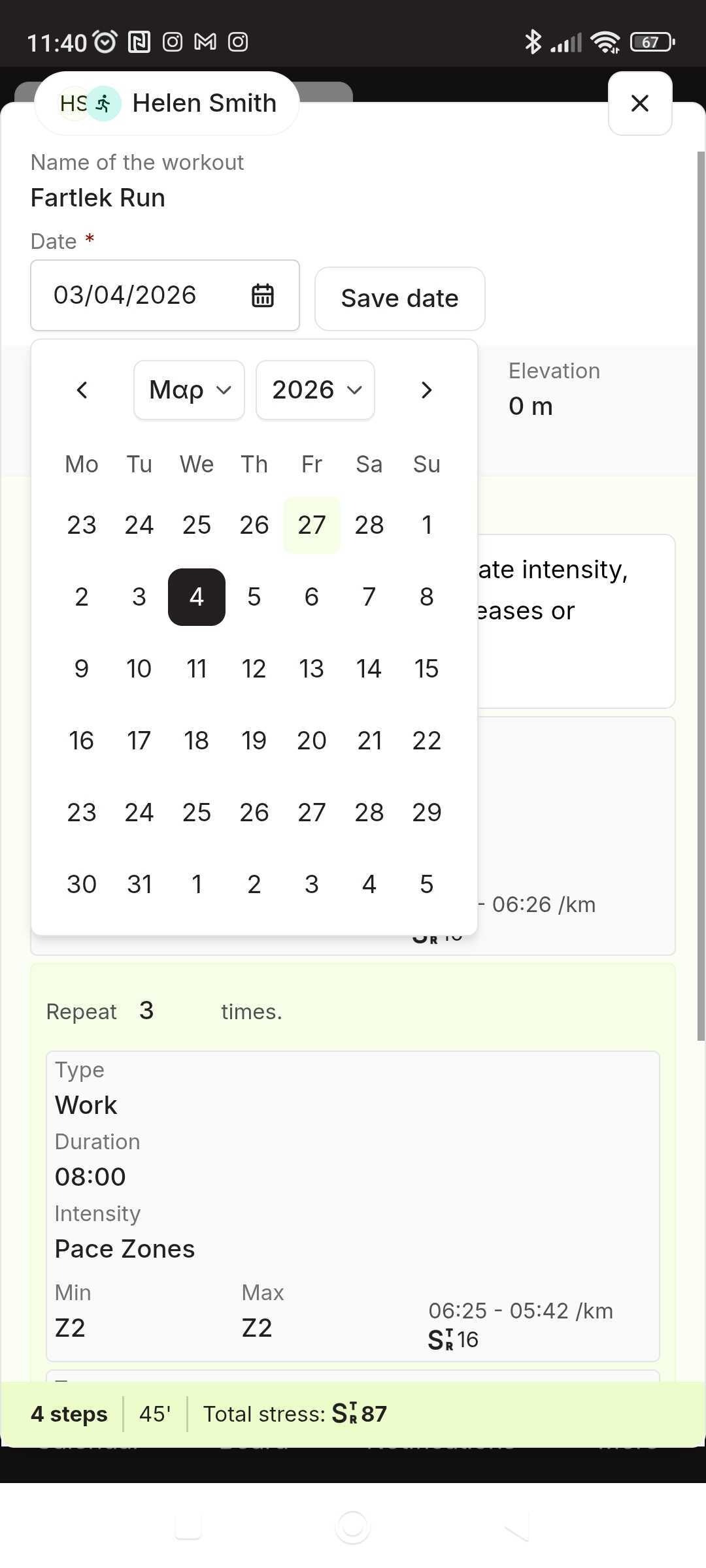
Step 5: Tap “Save date”
Click “Save date” to confirm.
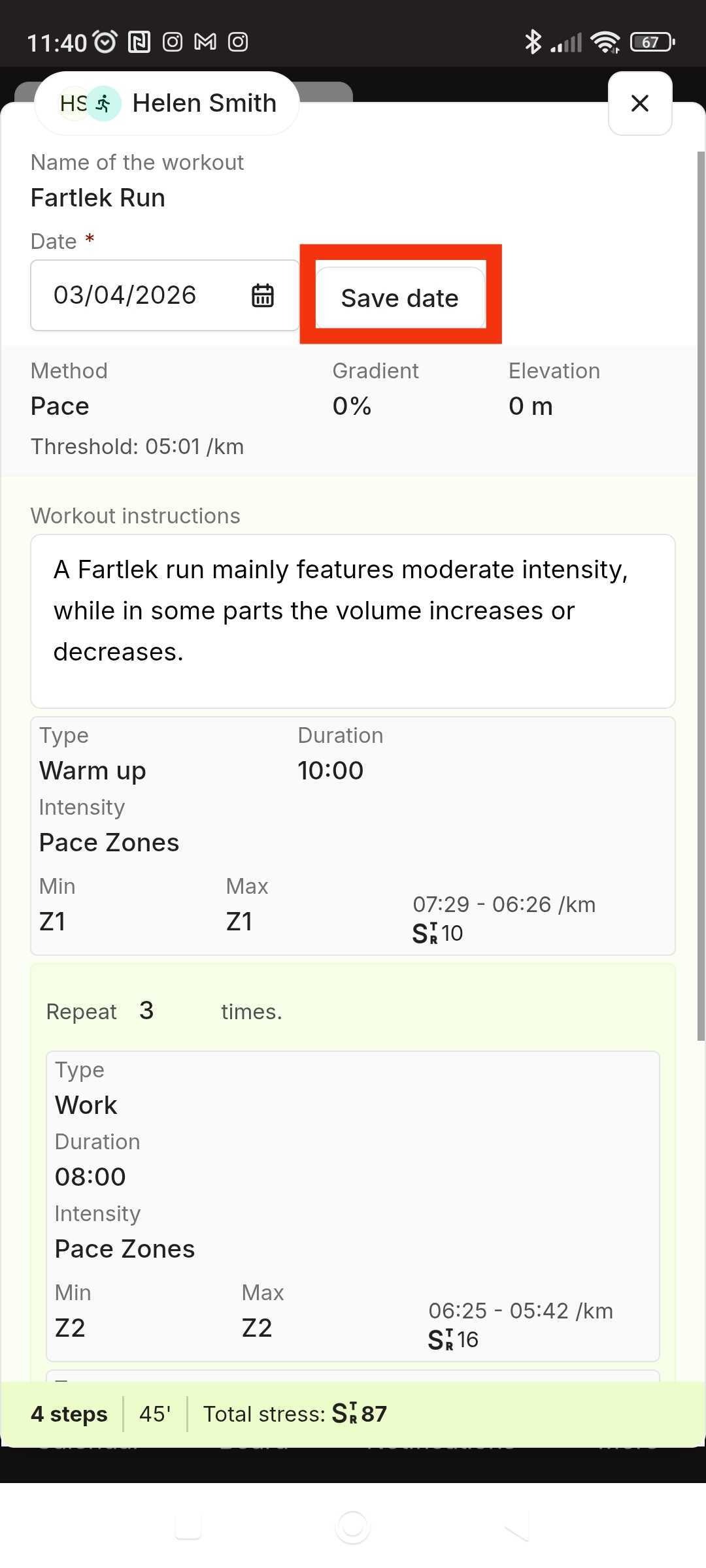
The workout has now been moved to the new date.
Important Notes
The workout structure remains the same.
Your training stress and duration stay unchanged.
Your coach will be able to see the updated date.
How to Change a Workout Date on Desktop
Step 4: Choose the New Date
Select the new date from the calendar picker.
Step 5: Tap “Save date”
Click “Save date” to confirm.
The workout has now been moved to the new date.
Important Notes
The workout structure remains the same.
Your training stress and duration stay unchanged.
Your coach will be able to see the updated date.
Option 1: Drag & Drop (Fastest Way)
Step 1: Open the Calendar
Go to Calendar and locate the workout you want to move.
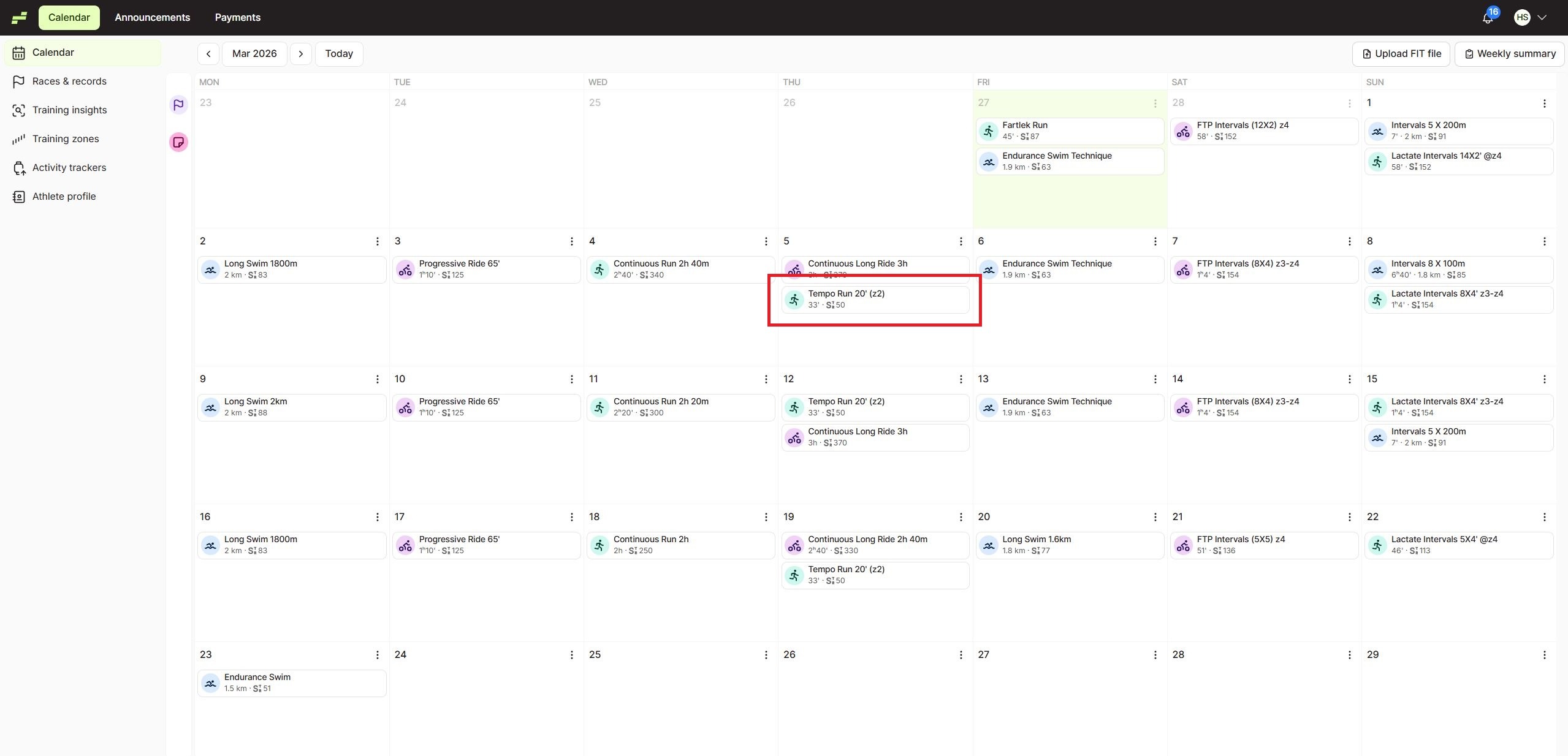
Step 2: Drag and Drop the Workout
Click and hold the workout.
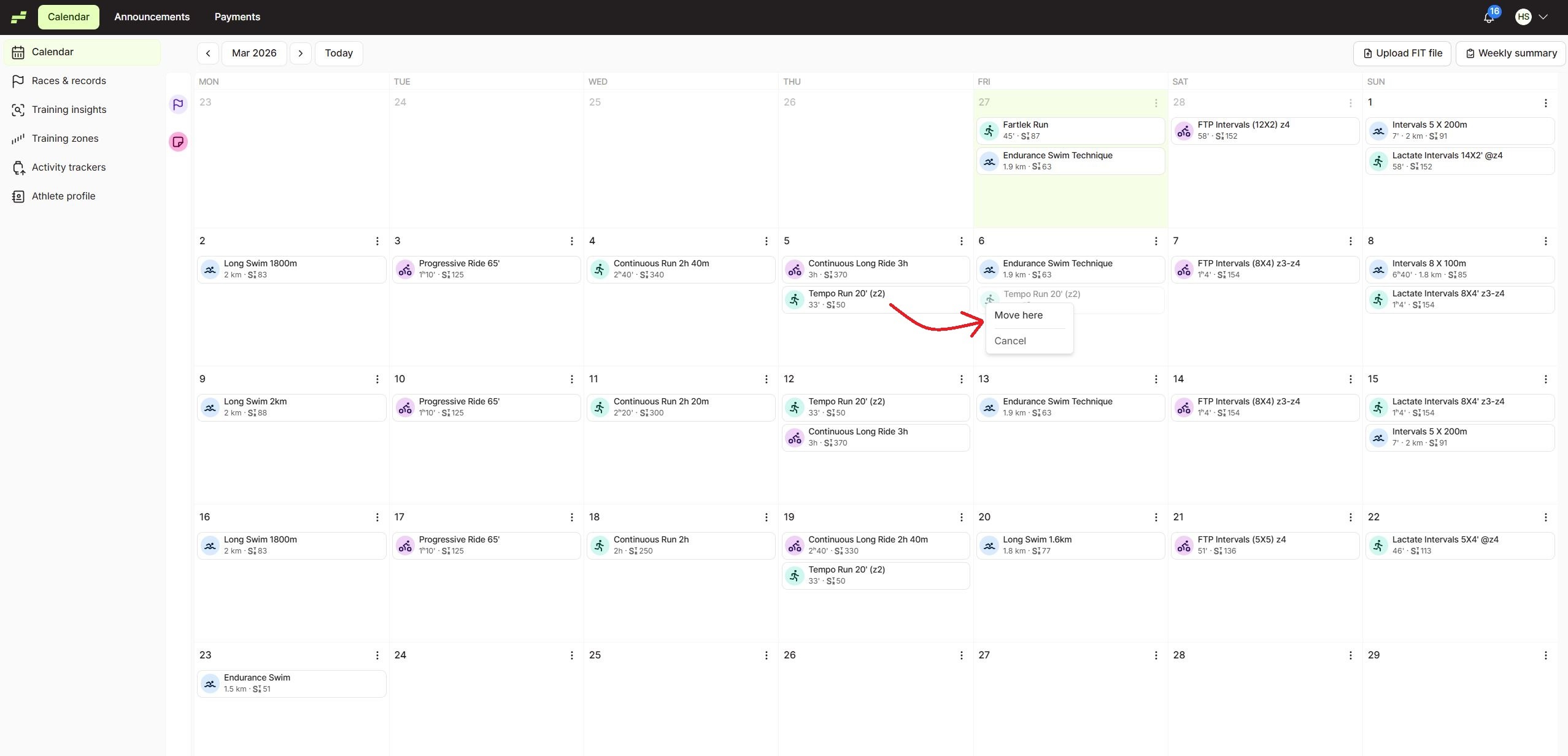
Step 3: Click “Move”
After dropping it on the new date, click “Move” to confirm.
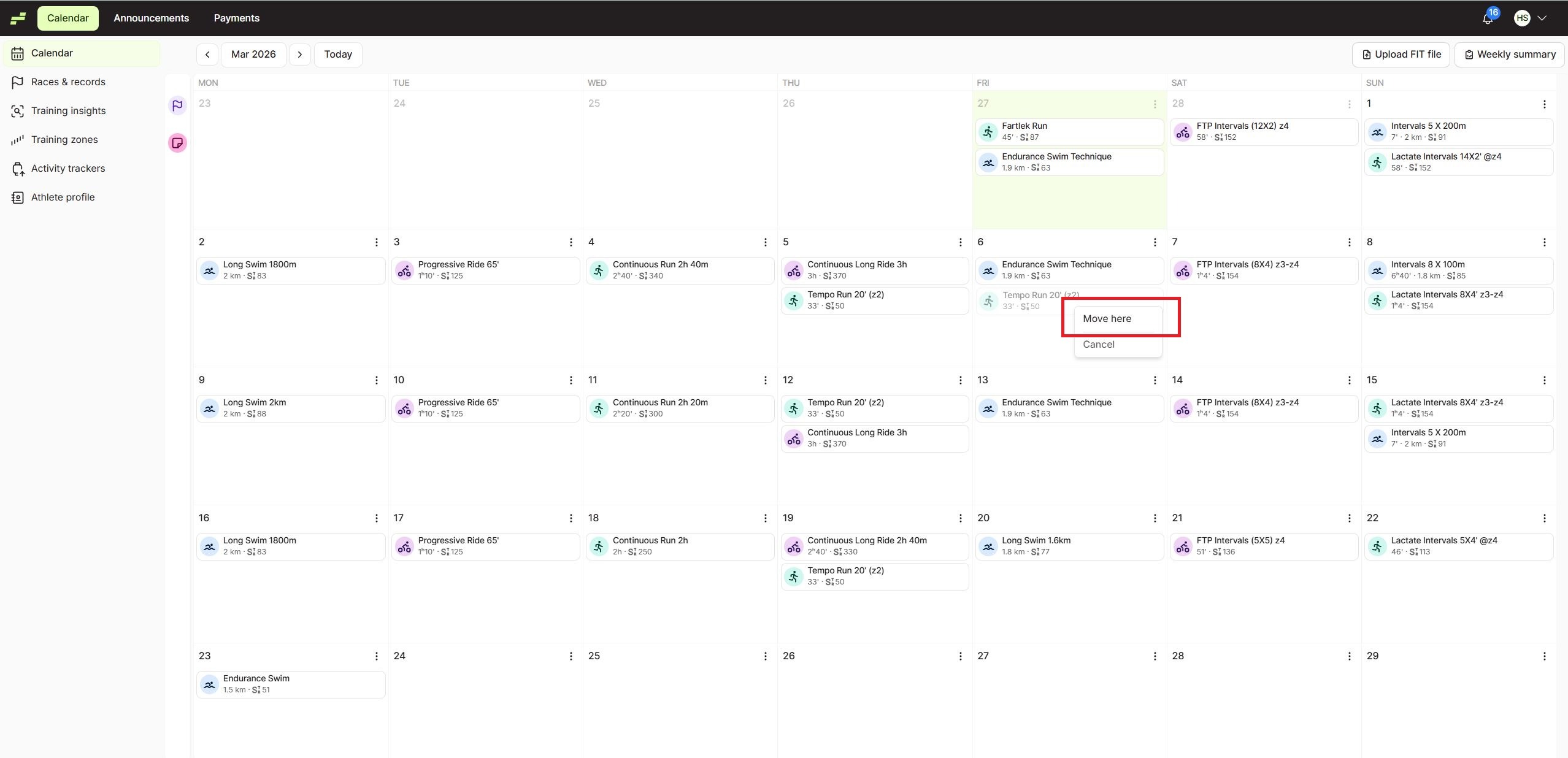
The workout has now been moved to the new date.
Option 2: Edit the Workout Date
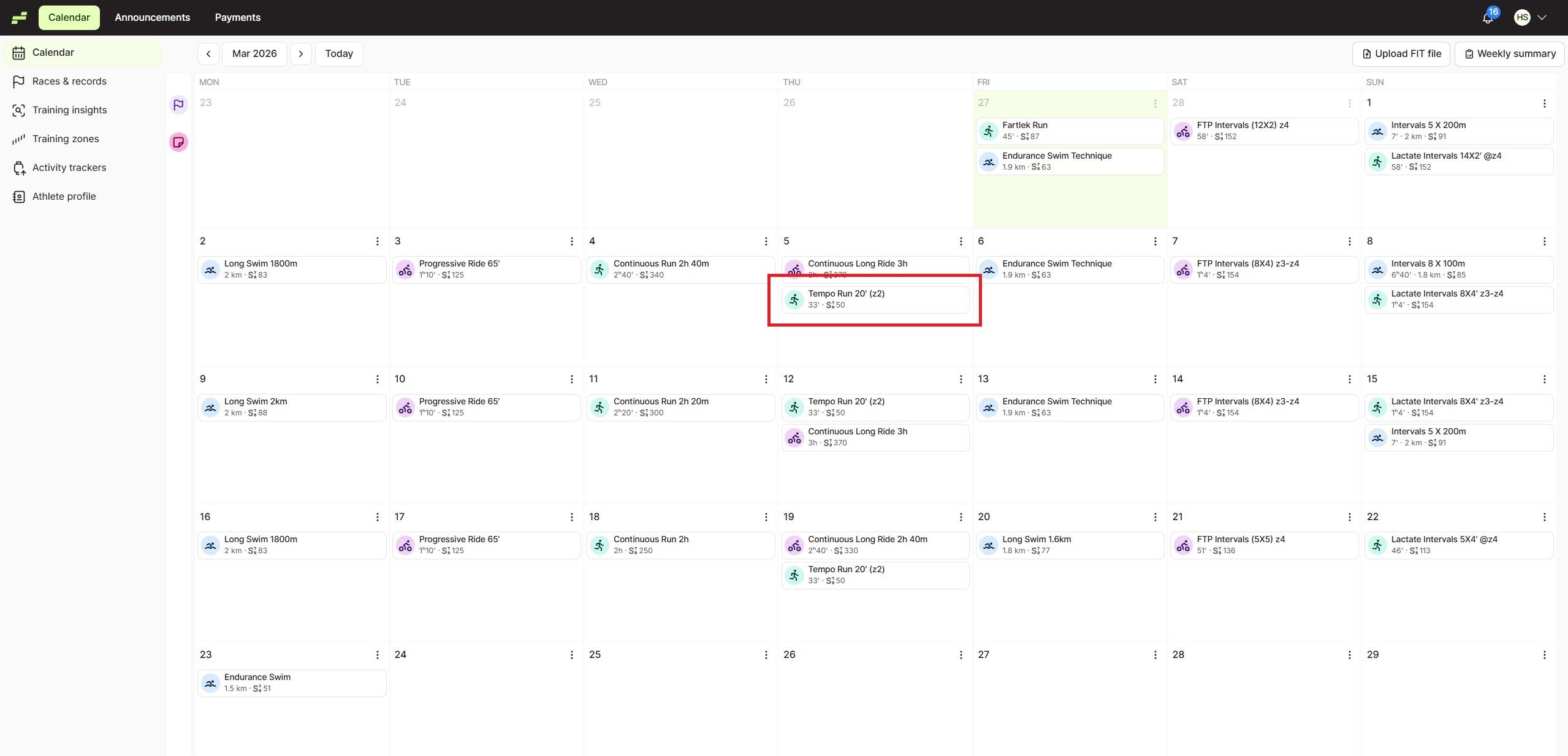
Step 1: Click the Workout
Go to Calendar and click the workout you want to change.
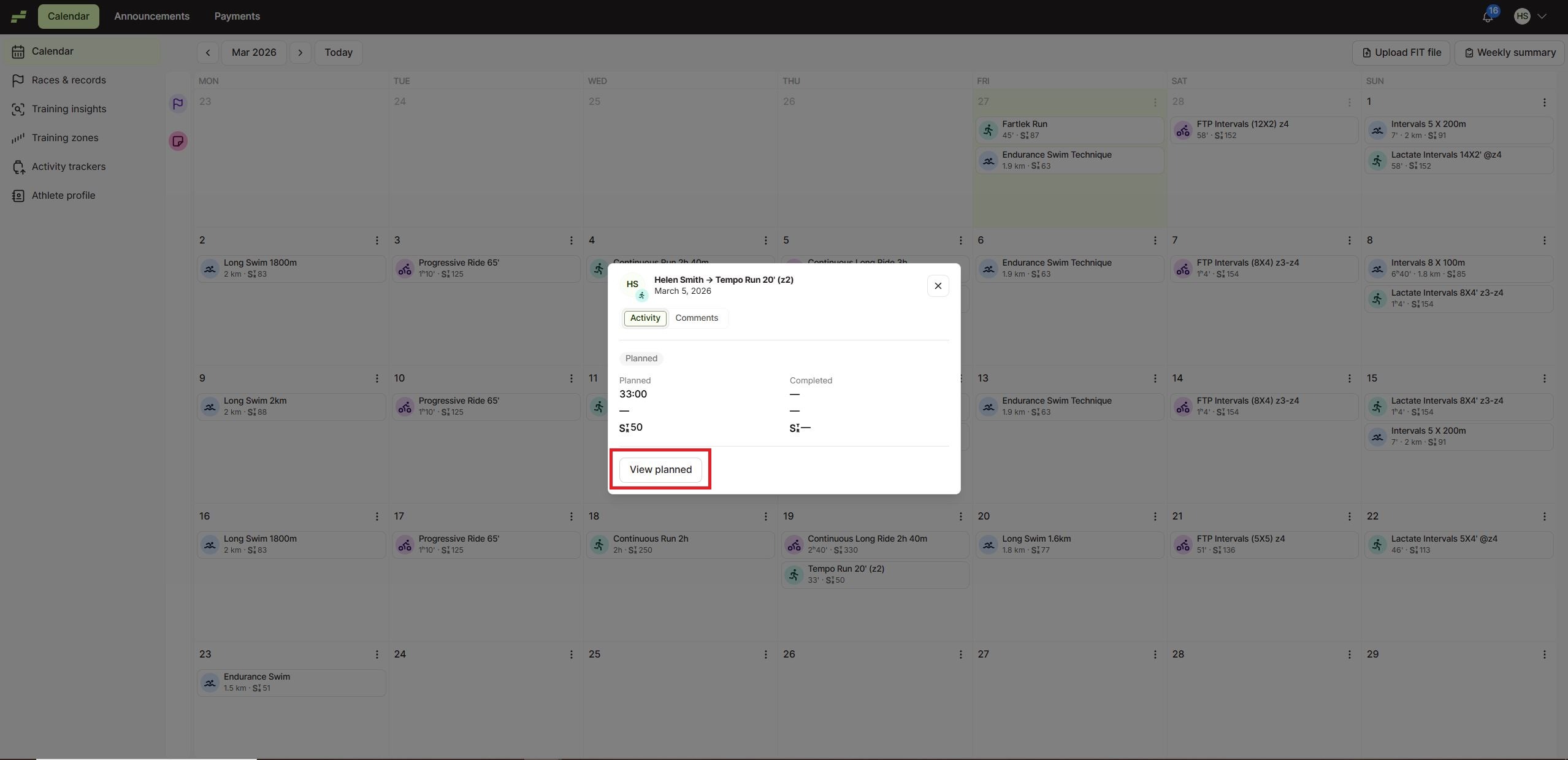
Step 2: Click “View planned”
In the workout preview window, click “View planned”.
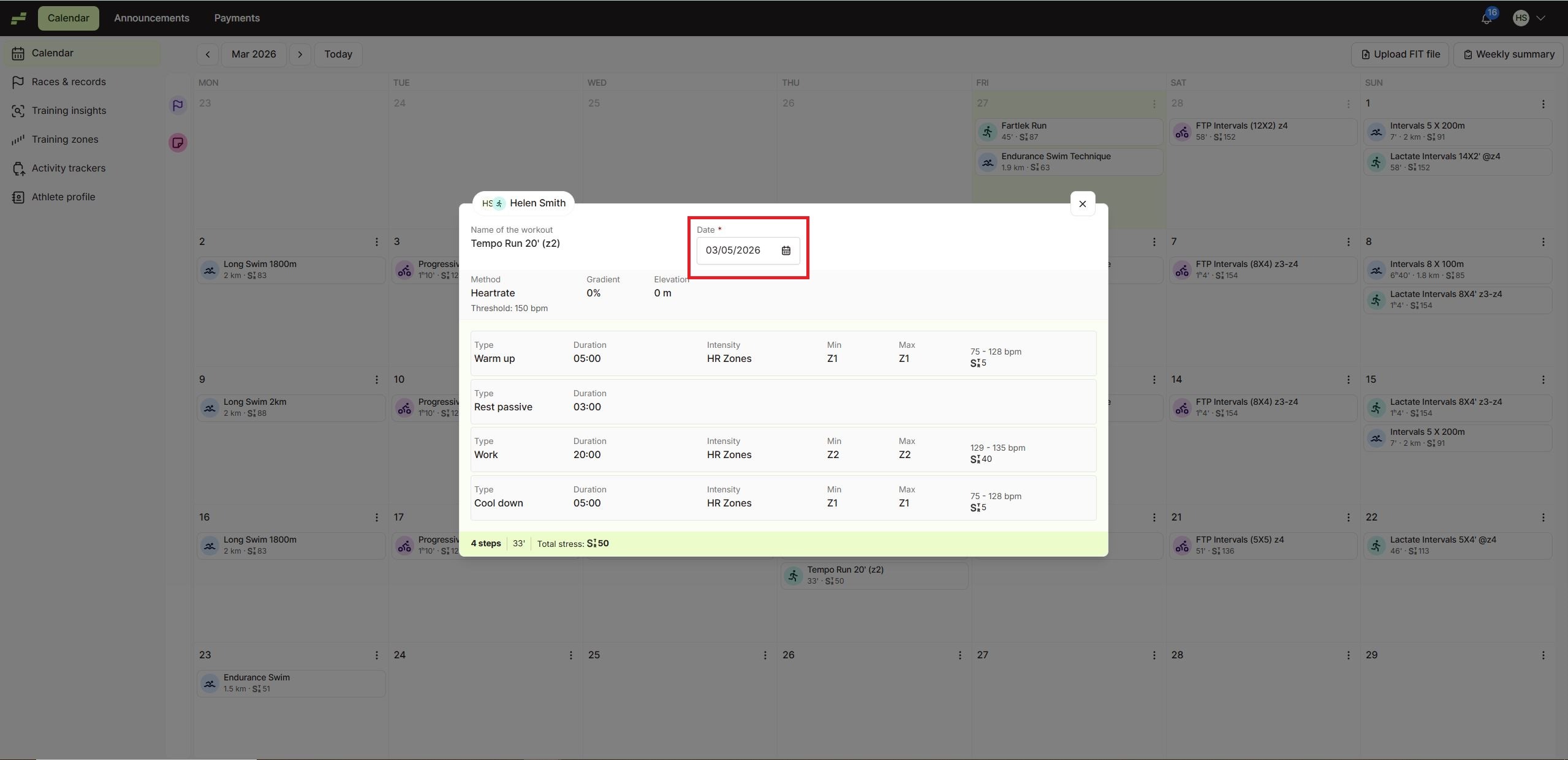
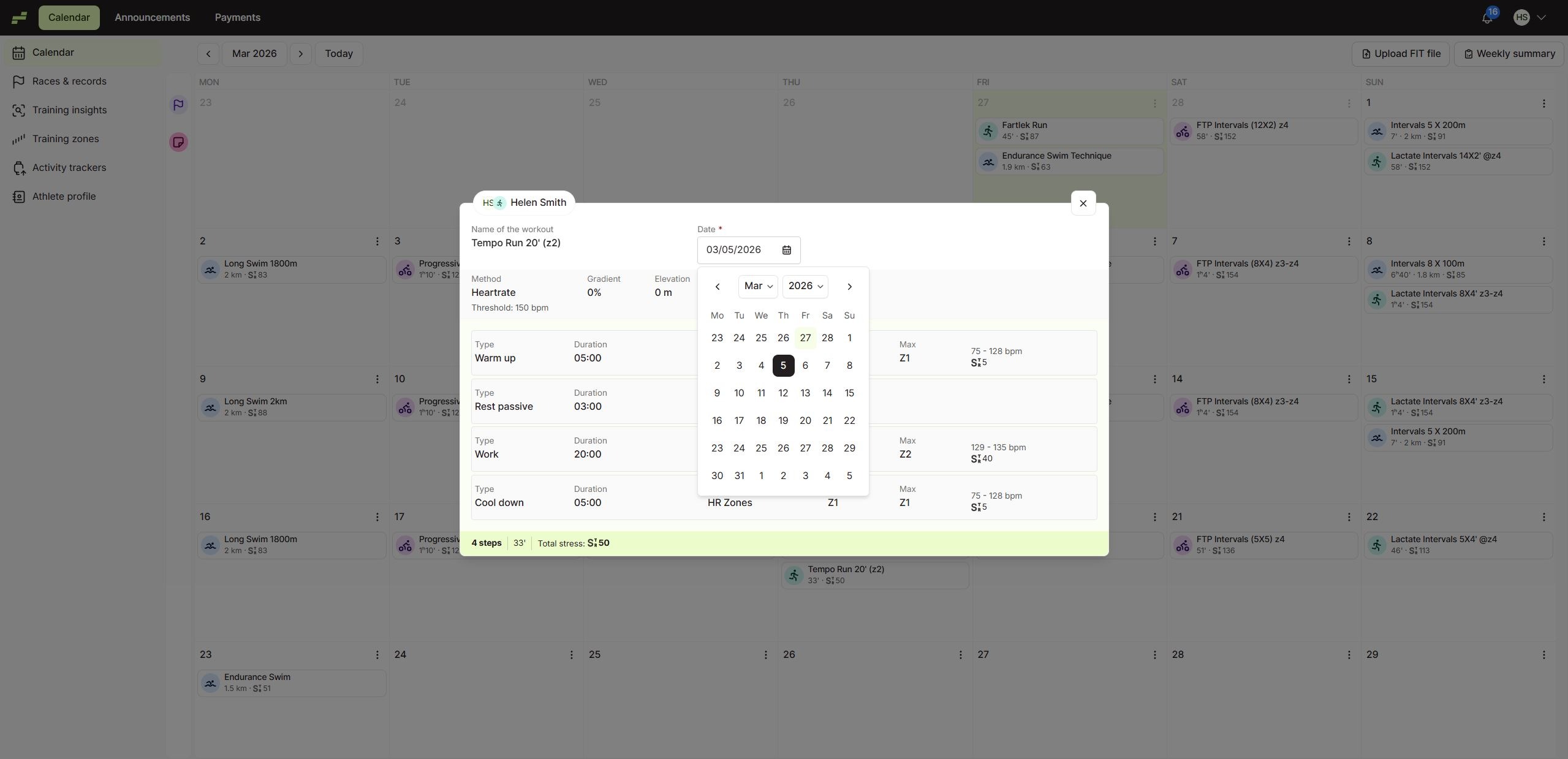
Step 3: Click on the Date Field
At the top of the workout details, click on the Date field.
Step 4: Select the New Date
Choose the date you want from the calendar picker.
Step 5: Click “Save date”
Click “Save date” to confirm the change.