EndoGusto comes with built-in training zone methods for each sport, but every coach has their own approach. With Custom Training Zones, you can create your own zone methods per sport (Running, Cycling, Swimming) and per metric (heart rate, pace, or power). Once you save a custom method, you can set it as the default for all your athletes, while still adjusting percentages for individual athletes when needed.
This guide walks you through creating and managing custom training zones at the business level.
Navigate to Training Zones Settings
Step 1: Open the Zones Tab
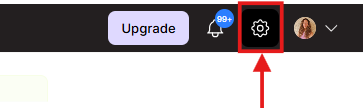
Click the Settings gear icon in the top right on navigation bar. This opens your Settings page.
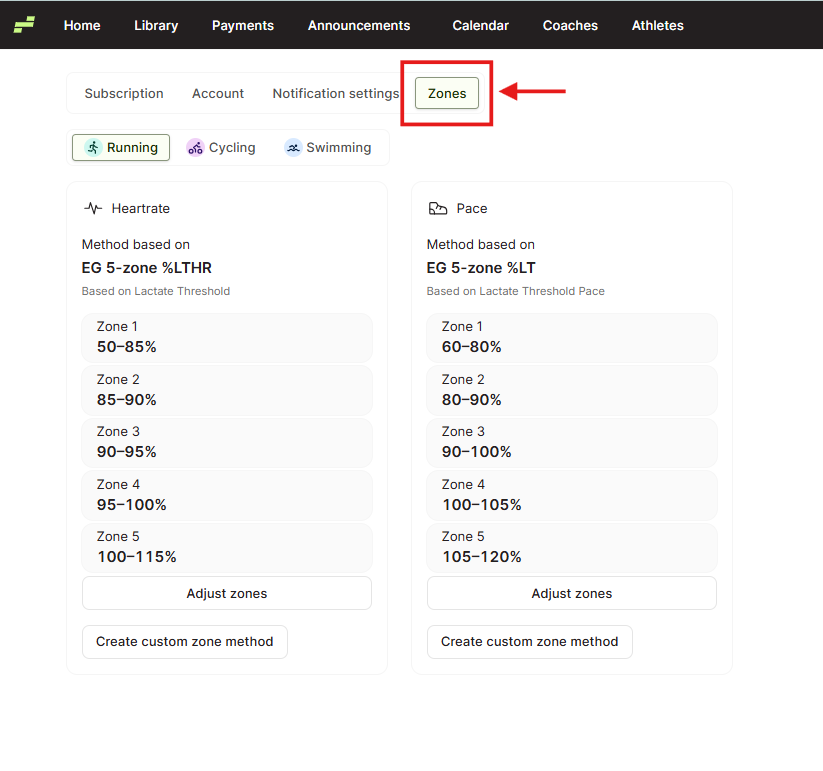
Select the "Zones" tab from the top menu (next to Subscription, Account, and Notification settings).
Step 2: Select a Sport
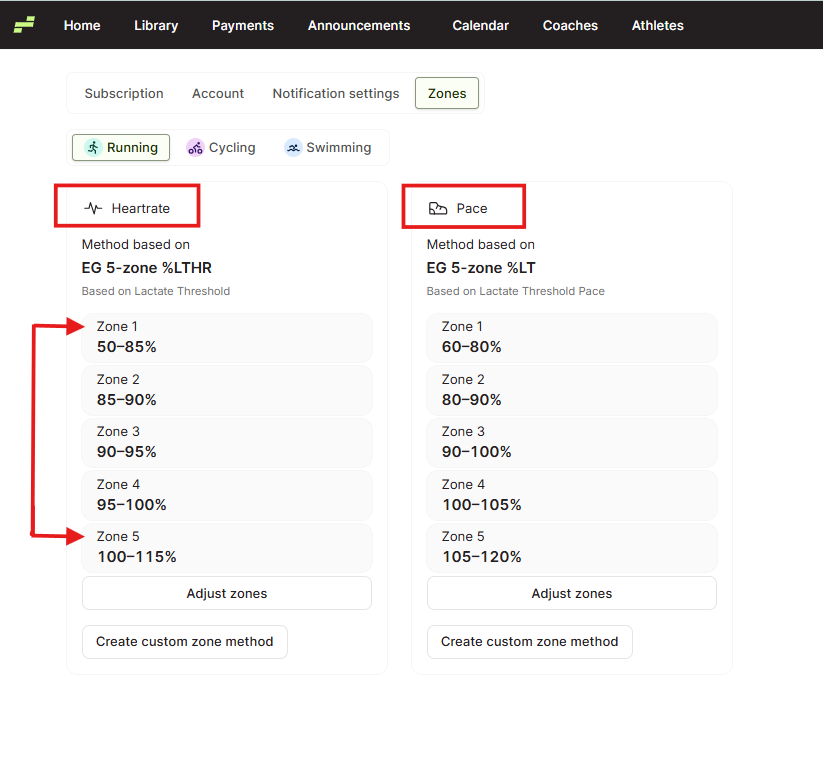
At the top of the Zones page, you'll see three sport tabs: Running, Cycling, and Swimming. Each sport has its own set of zone methods.
Click the sport you want to configure. For example, selecting Running shows two zone method cards: Heart Rate and Pace. Each card displays the current method name, what it's based on, and the zone percentage ranges (Zone 1 through Zone 5 by default).
Adjust an Existing Zone Method
Step 3: Edit Zone Percentages
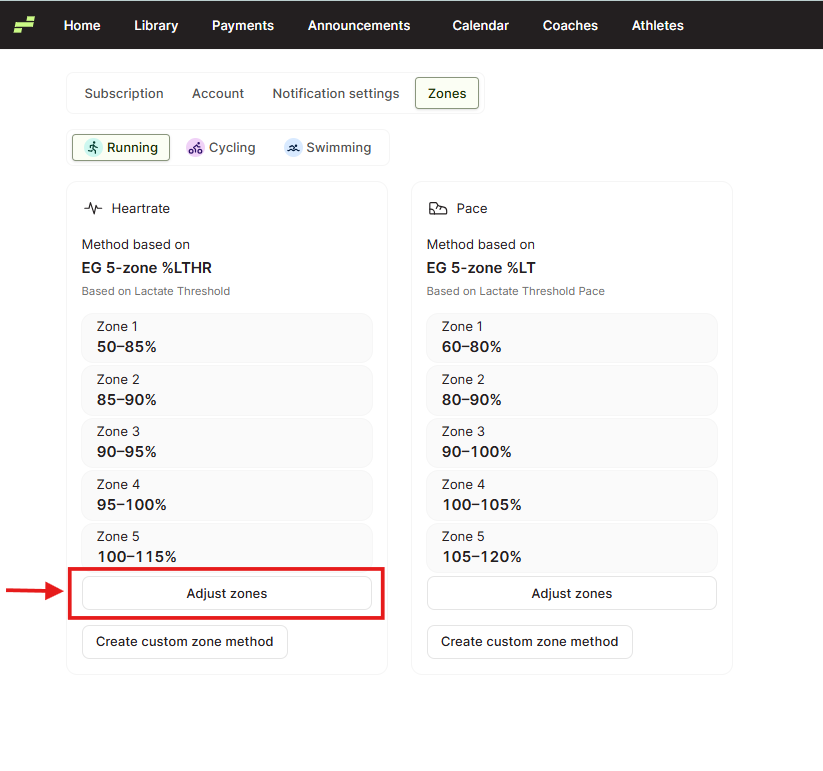
If you want to modify the percentages of an existing method without creating a new one, click "Adjust zones" on the method card you want to edit.
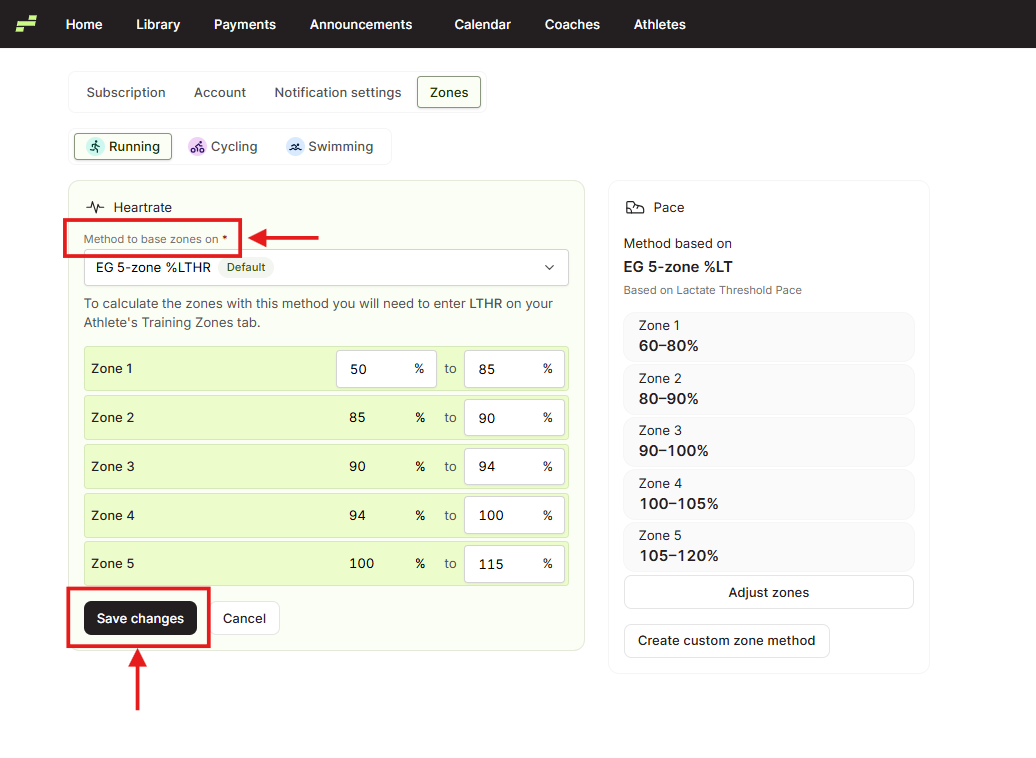
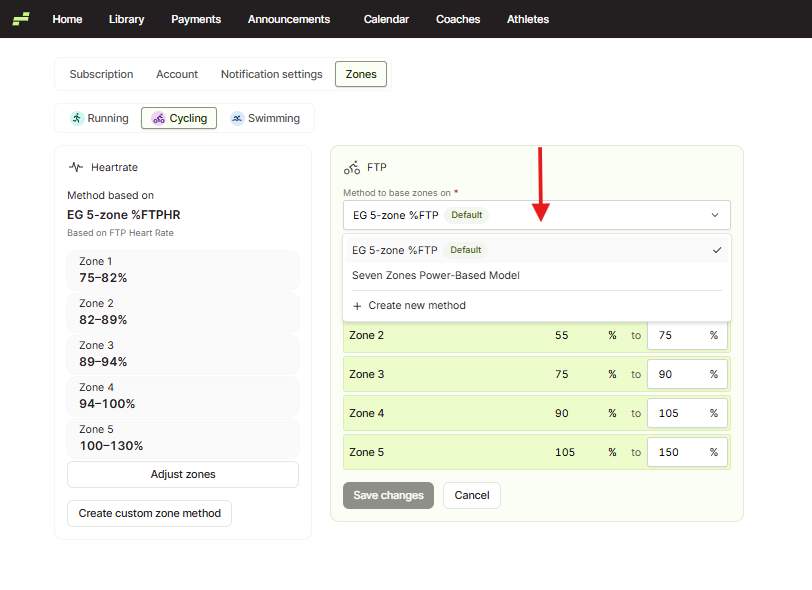
The card expands into an editable form. You'll see a "Method to base zones on" dropdown at the top (showing the current method, marked as "Default") and editable percentage fields for each zone. Adjust the values to match your coaching approach, then click "Save changes".
Create a Custom Zone Method
Step 4: Start a New Method
You have two ways to create a custom zone method:
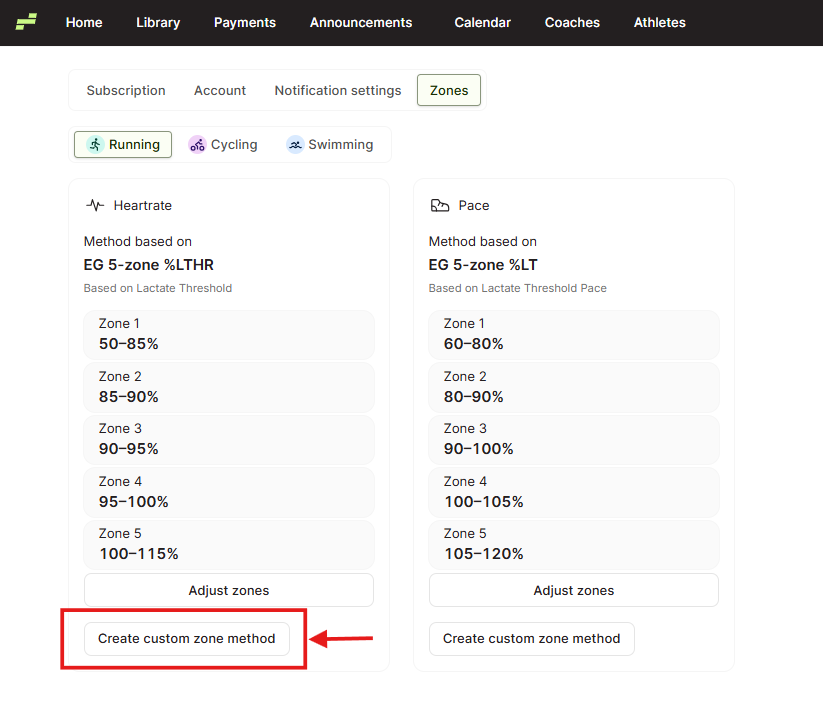
- Click the "Create custom zone method" button below any method card.
- Or click "Adjust zones" on an existing method, open the "Method to base zones on" dropdown, and select "+ Create new method".
Both options open the custom zone creation form. You'll see a "Name of custom zone" field and three default zone rows (Zone 1, Zone 2, Zone 3), each with an editable name, a percentage range (% to %), and a delete icon.
Step 5: Configure Your Zones
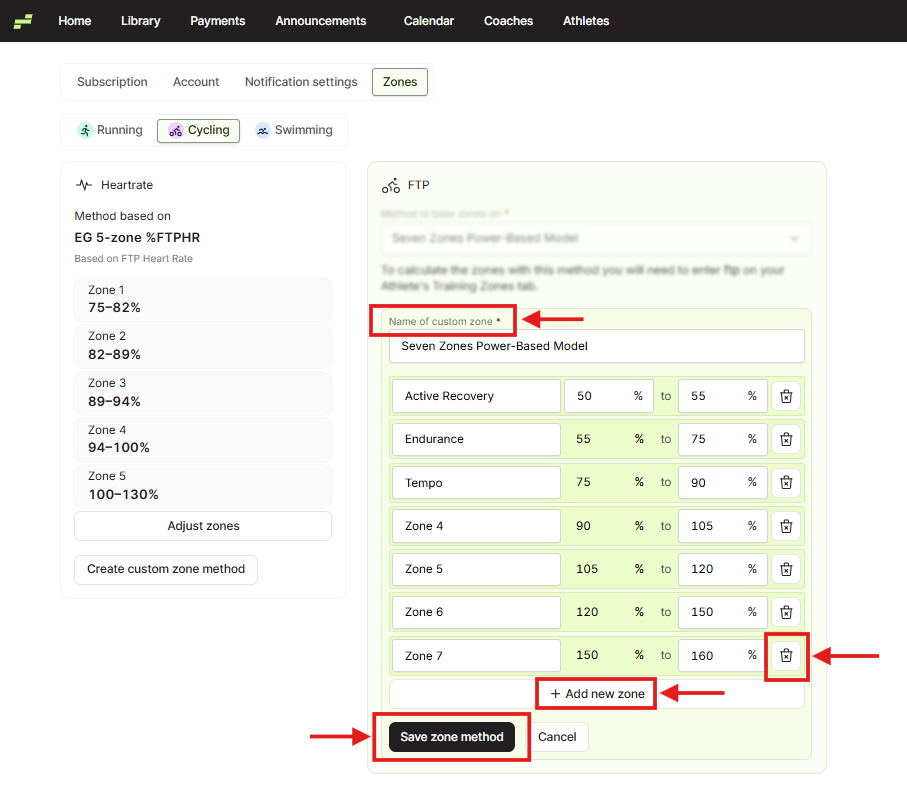
Give your custom method a name in the "Name of custom zone" field.
Then fill in each zone row with the percentage range you want. The start percentage of each zone automatically picks up from where the previous zone ends, so you only need to set the upper boundary.
You can customize this setup further:
- Rename zones by editing the zone name field (e.g., change "Zone 1" to "Recovery" or "Easy").
- Add more zones by clicking "+ Add new zone" at the bottom of the zone list.
- Remove a zone by clicking the trash icon next to it.
When you're done, click "Save zone method".
Set a Custom Method as Default
Step 6: Apply to All Athletes
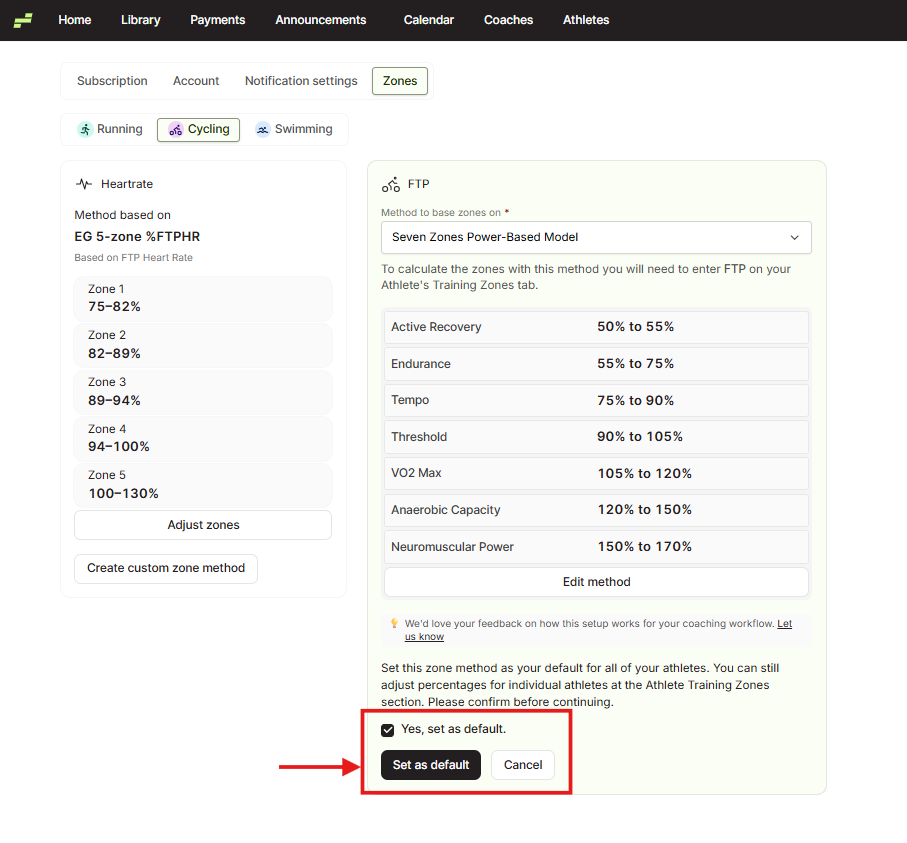
After saving your custom zone method, EndoGusto shows a summary of all your zones with their percentage ranges and asks you to confirm.
You'll see the message: "Set this zone method as your default for all of your athletes. You can still adjust percentages for individual athletes at the Athlete Training Zones section. Please confirm before continuing."
Check the "Yes, set as default" checkbox to apply this method to all your athletes. If you're not ready to set it as the default yet, click "Cancel" to save the method without applying it. You can click "Edit method" to go back and make changes before confirming.
You can also click the dropdown and select other methods to edit or to set as a default.
Adjusting Zones for Individual Athletes
Setting a default zone method applies it across all your athletes, but you can still fine-tune percentages for specific athletes. Go to the athlete's profile and open their Training Zones section to adjust their individual zone percentages without affecting your other athletes.
To calculate zones for methods like LTHR or LT Pace, you'll need to enter the athlete's threshold value on their Training Zones tab first.
Tips for Coaches
- Start with the built-in methods. EndoGusto's default 5-zone methods (based on %LTHR, %LT Pace, etc.) work well for most athletes. Create custom methods when you need a different number of zones or different percentage splits.
- Name your methods clearly. Use descriptive names that reflect your coaching system, like "7-zone Pace" or "3-zone HR Easy/Tempo/Threshold." This makes it easy to switch between methods later.
- Use the default, then adjust. Set your most-used method as the default for all athletes, then fine-tune individual athletes who need different ranges. This saves you from configuring each athlete separately.
- Configure each sport independently. Your zone approach for running might differ from cycling or swimming. EndoGusto lets you set different methods per sport, so take advantage of that.