
The EndoGusto Library is your central place to build reusable workouts you can assign to any athlete at any time. You can create a workout from scratch directly in the Library, then manage it from the workout list without ever leaving the page. This guide walks you through creating a new workout, duplicating an existing one, and deleting a workout from your Library.
Create a Workout from Scratch
Step 1: Open the Create New Menu
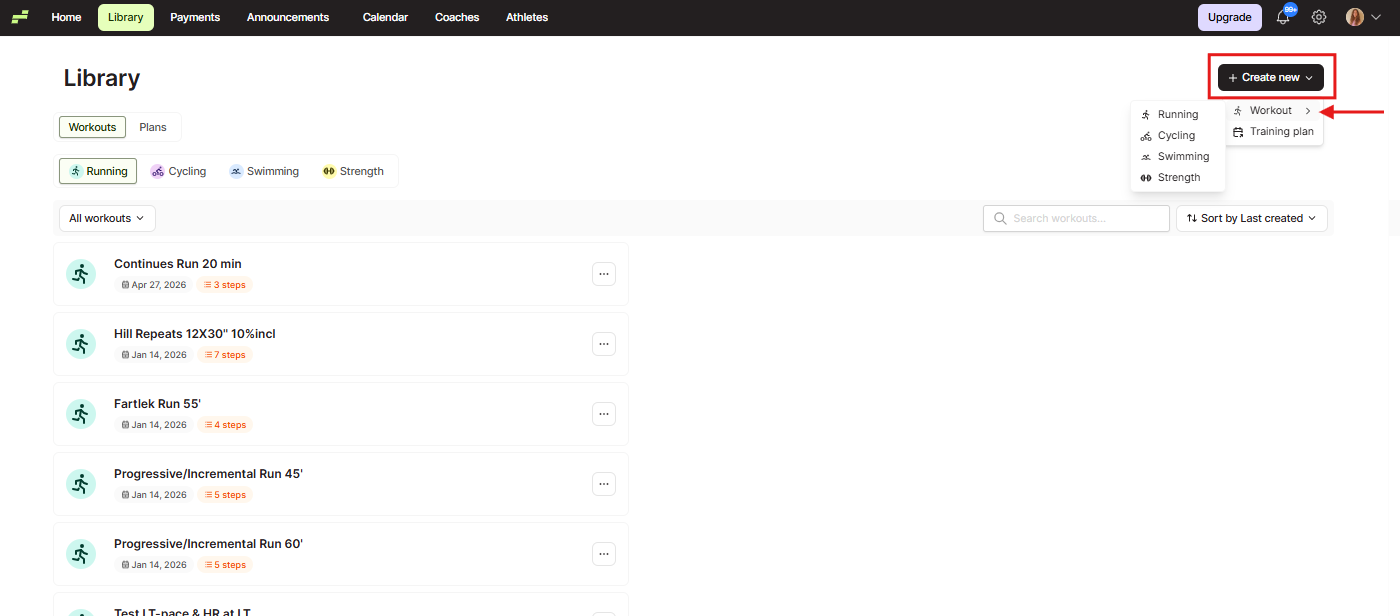
Go to Library in the top navigation bar. Make sure the Workouts tab is selected at the top of the page.
Click the + Create new button in the top right corner. A dropdown menu appears. Hover over Workout to reveal a submenu, then click the sport you want to create the workout for: Running, Cycling, Swimming, or Strength.
Step 2: Select the "From Scratch" Tab
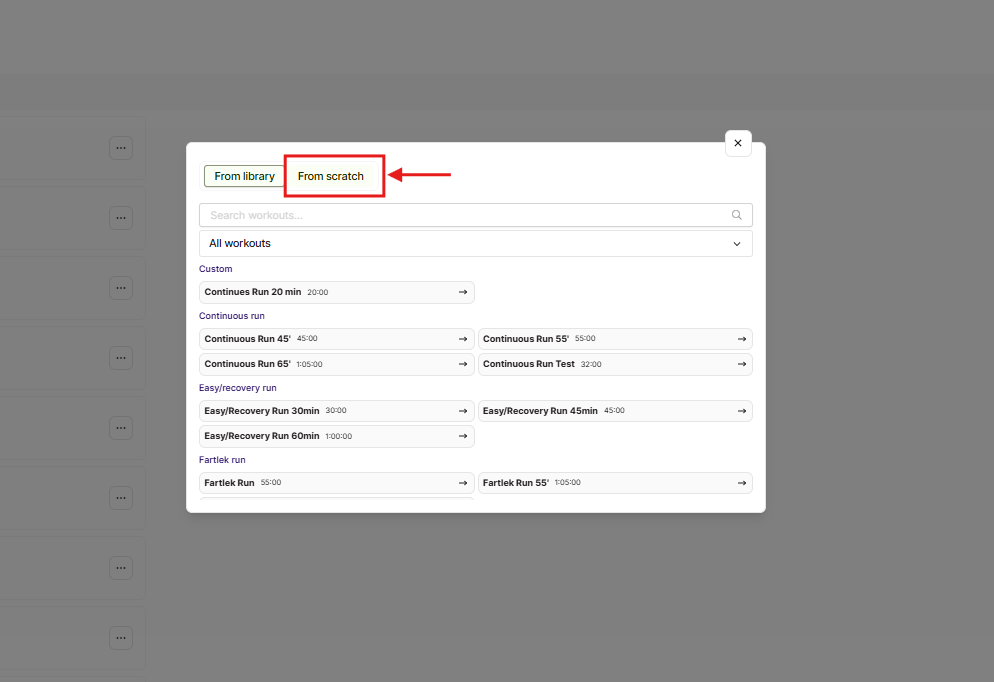
A workout creation modal opens. You will see two tabs at the top: From library and From scratch. Click From scratch to build a new workout from the ground up.
Step 3: Name Your Workout and Set the Category
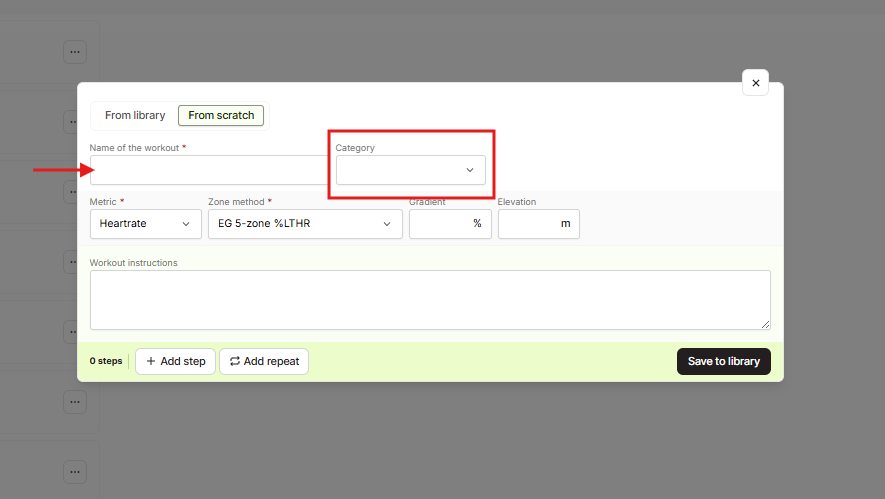
In the Name of the workout field, type the name you want to use for this workout in your Library. This is the name your athletes will see when the workout is assigned.
Click the Category dropdown and select the category that fits the workout.
Step 4: Configure Metric, Zone Method, and Optional Fields
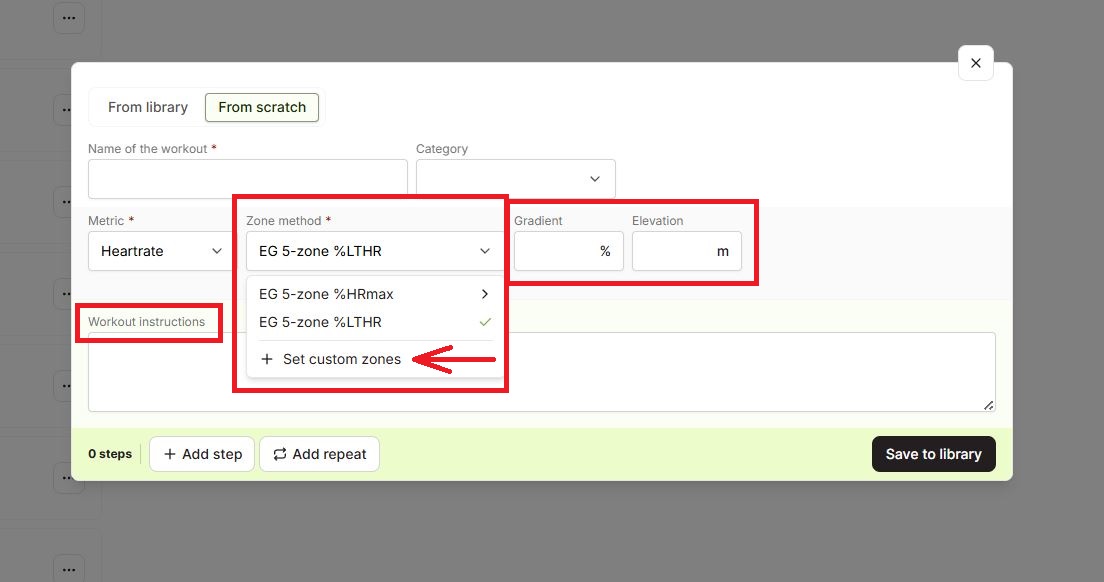
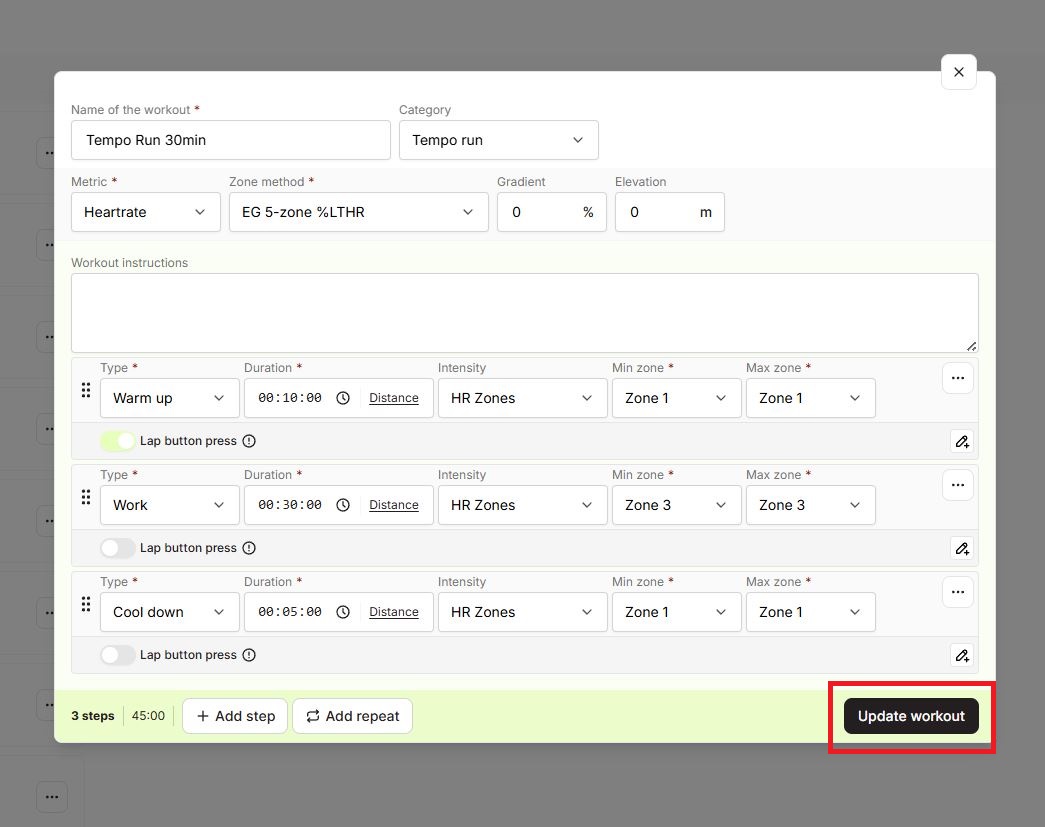
Use the Metric dropdown to select the measurement method for intensity: Heartrate, Pace, or Power, depending on the sport.
Use the Zone method dropdown to select your Zone method or click + Set custom zones. If needed, you can also set values for Gradient (%) and Elevation (m). Use the Workout instructions text area to add any general notes visible to the athlete.
Step 5: Add Your First Step
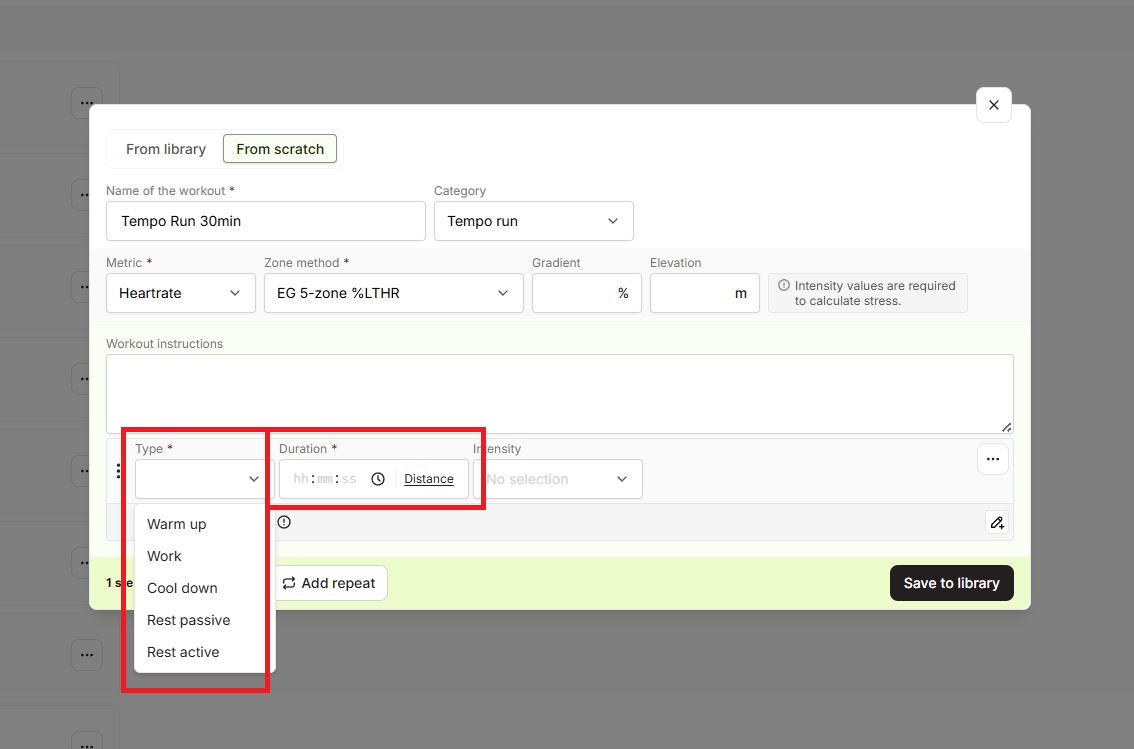
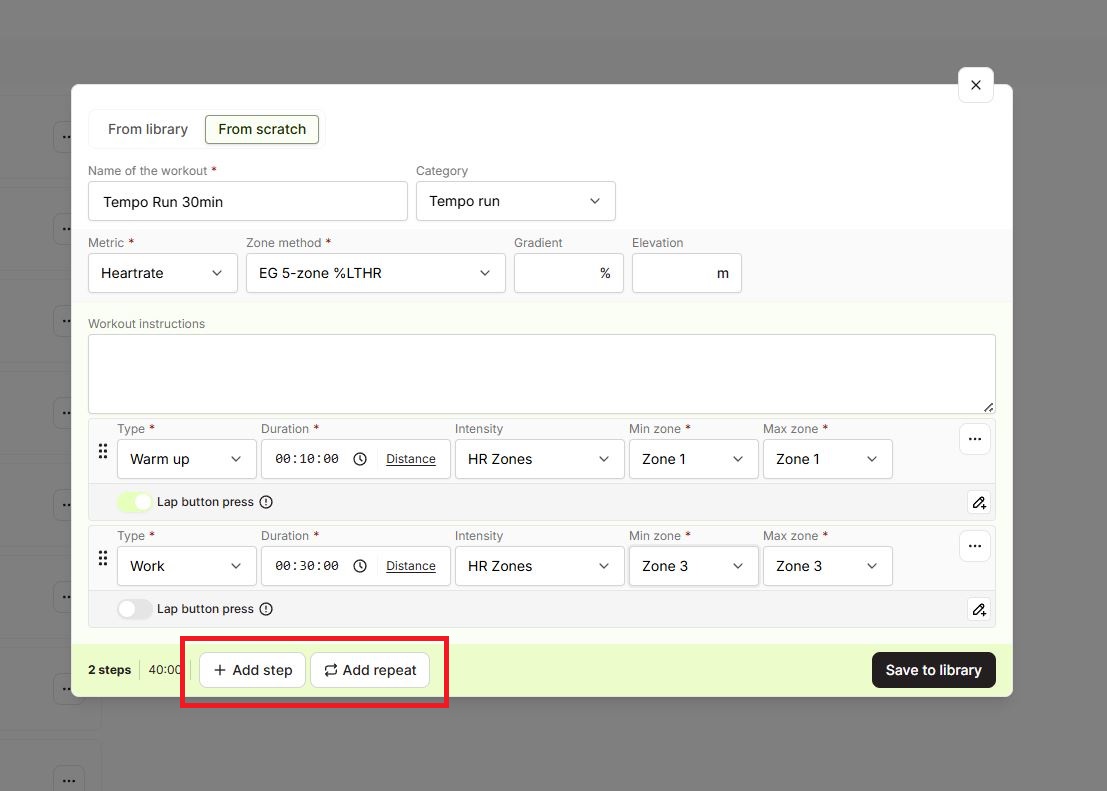
Click + Add step at the bottom of the modal. A step row appears with the following fields:
- Type: Choose from Warm up, Work, Cool down, Rest passive, or Rest active.
- Duration: Enter the step duration in hh:mm:ss format. You can toggle between time and Distance using the button next to the duration field.
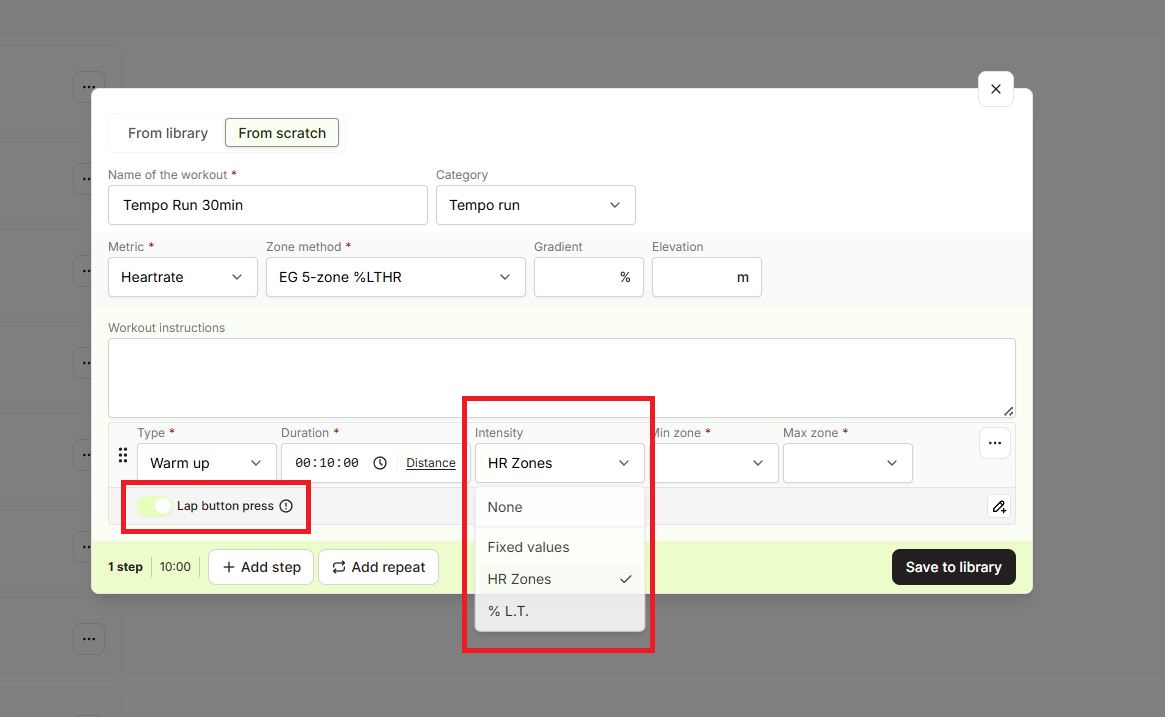
- Intensity: Select how intensity is defined for this step (for example, HR Zones or Fixed values).
- Lap button press: Toggle this on if you want athletes to manually advance to the next step on their device.
Step 6: Set Zone Range for the Step
When you select HR Zones (or another zone-based intensity), two additional dropdowns appear: Min zone and Max zone. Select the zone range that applies to this step. The bottom bar of the modal updates in real time, showing the running step count and total workout duration.
Repeat Step 5 and Step 6 for each additional step in the workout. Click + Add step each time you need a new row.
Step 7: Save the Workout to the Library
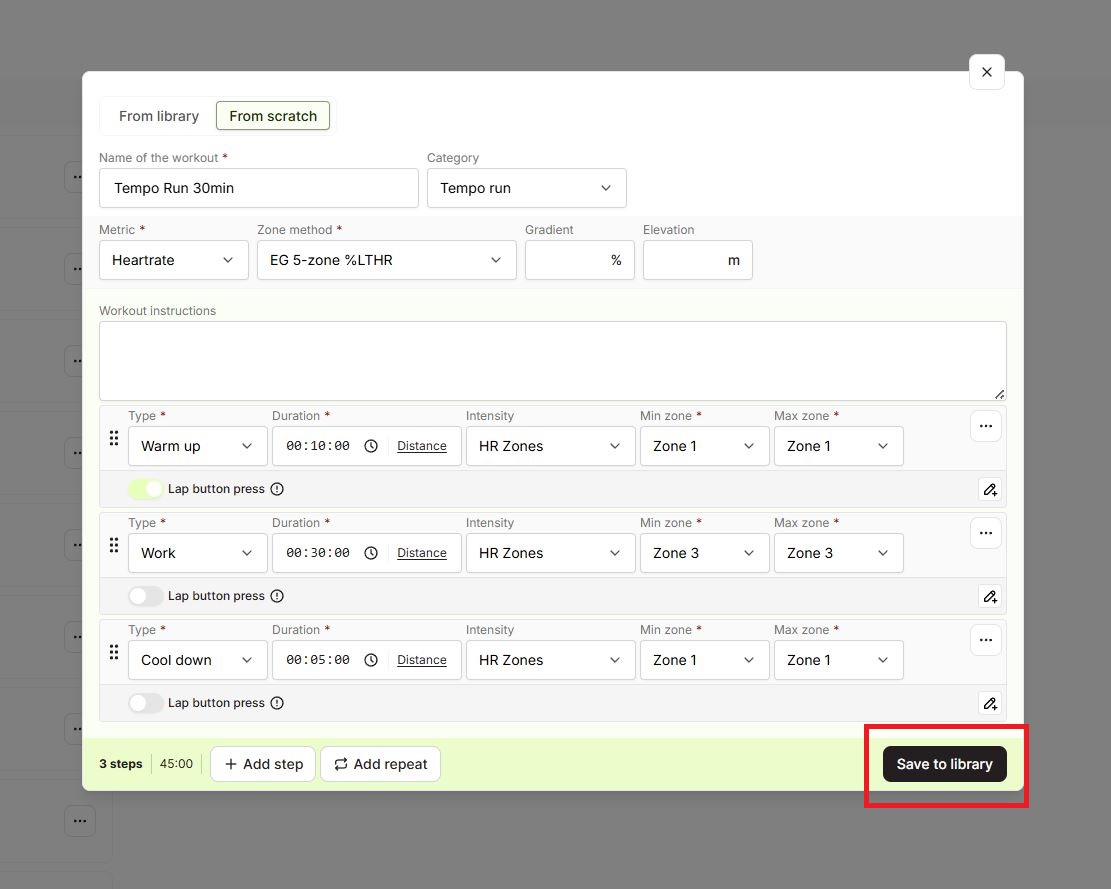
When all your steps are configured, click Save to library in the bottom right corner of the modal. The modal closes and your new workout appears at the top of the Library list with its name, creation date, and step count.
Edit a Saved Workout
To update a workout after saving it, click the workout name in the Library list. The same modal reopens with all your settings pre-filled. Make your changes and click Update workout to save them.
Duplicate or Delete a Workout from the Library
Step 8: Open the Workout Options Menu
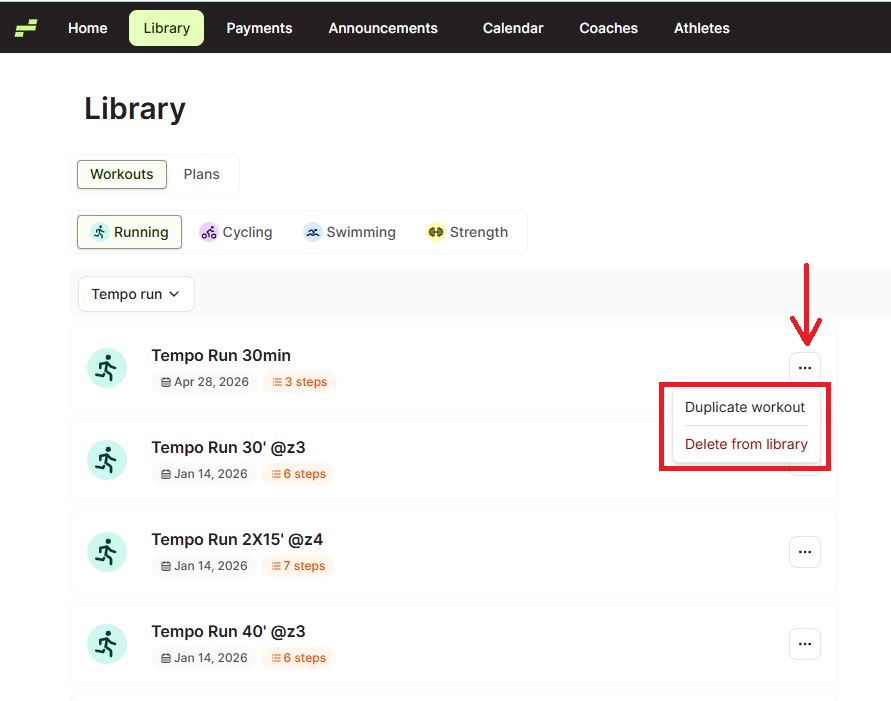
Find the workout you want to manage in the Library list. Click the ... (three dots) button on the right side of the workout row. A small menu appears with two options:
- Duplicate workout — Creates an identical copy of the workout at the top of the list. You can build off the original workout and save it as a new workout with a new title.
- Delete from library — Permanently removes the workout from your Library.
Click the option you need.
Tips for Coaches
- Name workouts clearly from the start. A descriptive name like "Continues Run 20 min — Z2" saves time when you are searching the Library to assign workouts later.
- Use Duplicate to build variations. If you have a base workout and want a harder or easier version, duplicate it first and then adjust the zones or duration in the copy. This keeps your original intact.
- Build the full structure before setting zones. Add all your steps with the correct types and durations first, then go back to configure intensity. This makes it easier to see the full workout shape as you work.
- Use the Distance toggle for pace-based workouts. When you set Metric to Pace, switch the duration field to Distance to define steps by kilometers or miles instead of time.
- Check the step count in the bottom bar. The running total (steps and duration) updates live as you build, so you can verify the overall workout length before saving.