
EndoGusto lets you attach individual notes to each step of a workout, giving your athletes targeted instructions exactly where they need them. Step notes are separate from the general Workout instructions field at the top of the builder; they live inside each step and appear in your athlete's workout view when they open the session. Use them to set expectations, flag technique cues, or give pacing reminders for each segment.
This guide walks you through adding step notes in the Workout Builder and editing them on a workout you've already assigned.
Add Step Notes in the Workout Builder
Step 1: Open the Workout Builder
From your Calendar, click the day you want to schedule the workout. The Workout Builder panel opens. Select From scratch or From library and configure your workout steps as usual before adding notes.
Step 2: Open the Note Field for a Step
Each step in the Workout Builder has a note icon (pencil icon) on the far right of its row. Click the note icon on the step you want to annotate.
The step expands to show a text field below the Lap button press toggle. The field displays the placeholder text "Instructions for this step..." to indicate where to type. To close the field without adding a note, click the X on the right.
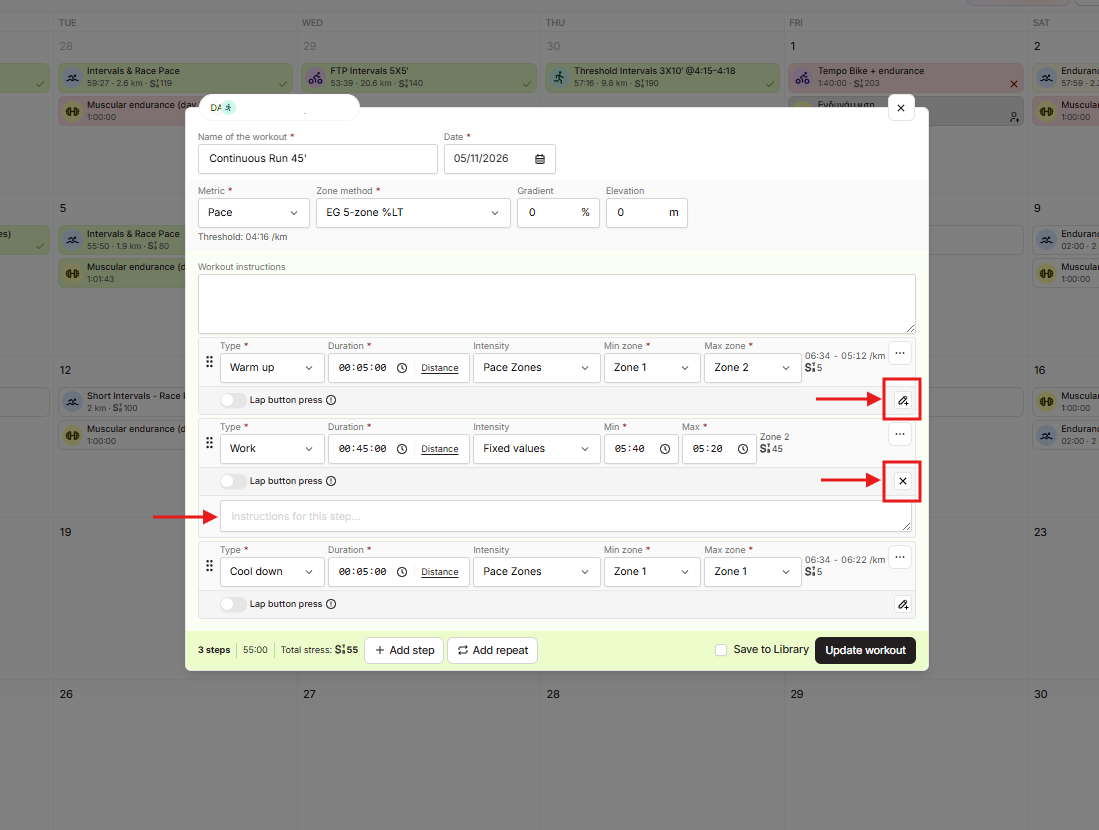
Step 3: Type Your Step Note
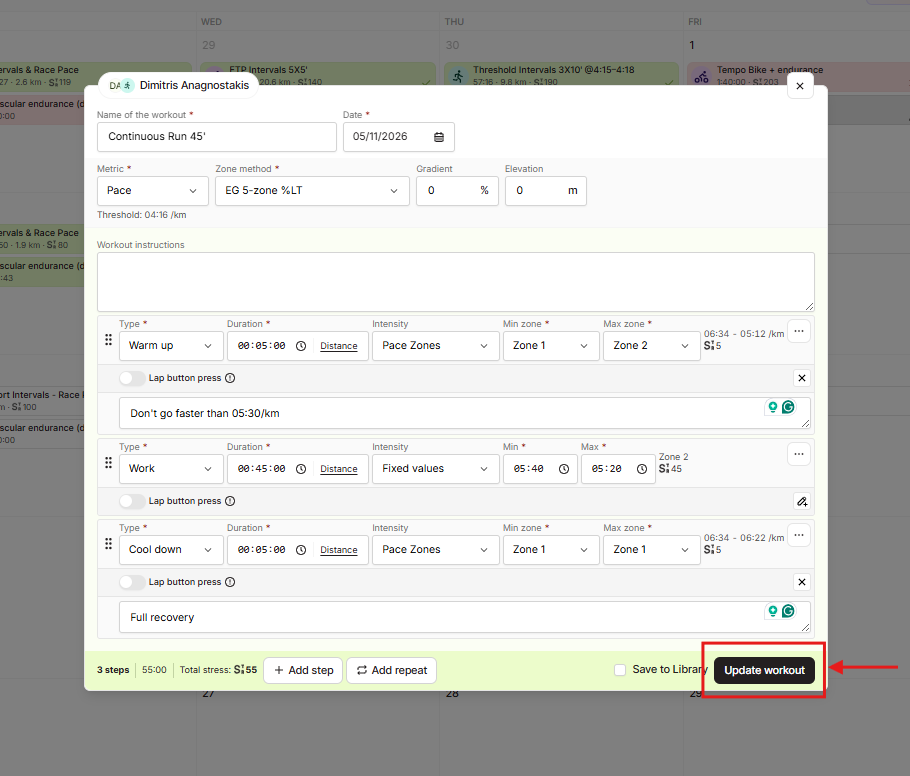
Click inside the note field and type the instruction you want your athlete to see for that step. For example: "Don't go faster than 05:30/km" for a Warm up step, or "Full recovery" for a Cool down.
Repeat Steps 2 and 3 for each step that needs a note. Every step has its own independent note field, so you can annotate some steps and leave others blank.
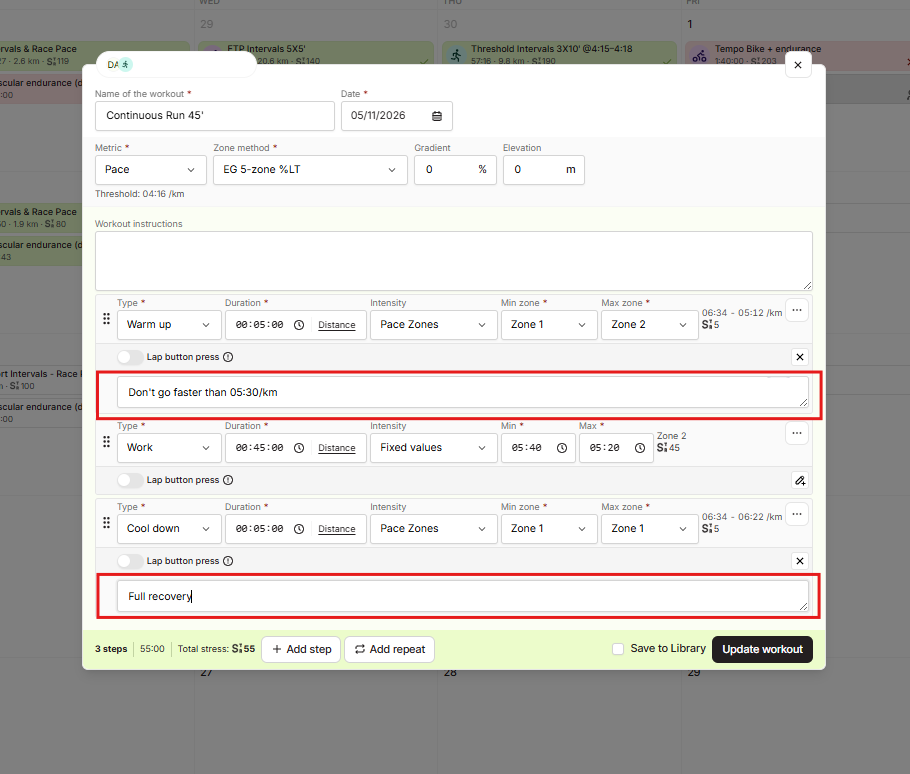
Step 4: Assign the Workout
Once you've added notes to all the steps you want, click Assign workout at the bottom right of the Workout Builder. The workout is saved and assigned to your athlete with the step notes included.
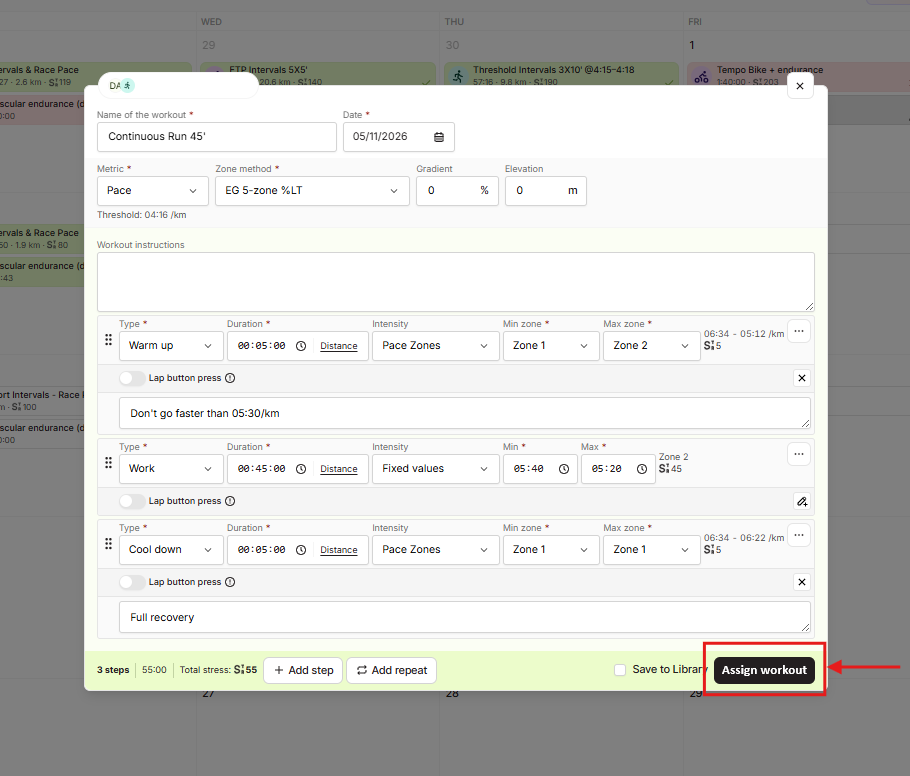
What Your Athletes See
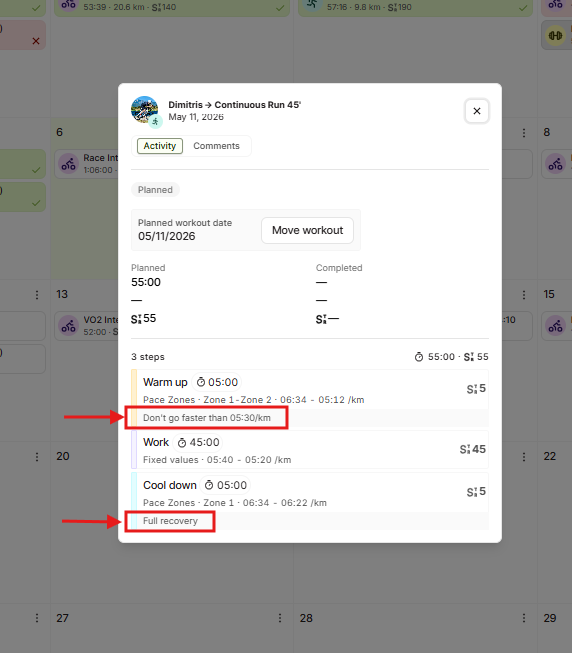
After you assign the workout, your athlete opens it from their calendar and sees each step listed with its note directly below the step details -- zone range, duration, and then the note. Notes are visible without any extra action from the athlete. Each step displays only its own note, so the instructions stay clear and focused for each segment.
Edit Step Notes on an Existing Workout
Step 5: Open the Workout for Editing
To update step notes on a workout you've already assigned, open the workout card from the Calendar and click Edit workout at the bottom of the card.
The Workout Builder reopens in edit mode with all existing step notes visible in their expanded fields. You can update any note or clear it entirely.
Step 6: Save Your Changes
Edit the note field for any step you want to change. When you're done, click Update workout at the bottom right to save your changes.
Tips for Coaches
- Use step notes for in-the-moment cues. The Workout instructions field at the top of the builder is for general context about the session. Reserve step notes for brief, specific guidance your athlete reads right before or during each segment.
- Keep notes short and actionable. Your athlete sees step notes mid-workout. A short cue like "Keep cadence above 85 rpm" is far more useful than a long explanation.
- Build your steps first, then annotate. Set up all your step types, durations, and zones before going back to add notes. This keeps the building process focused and avoids interrupting your flow.
- Edit notes without rebuilding. Use Edit workout on any assigned workout to update step notes at any time. The rest of the workout stays exactly as it was.
- Leave blank steps blank. You don't need a note on every step. If a step is self-explanatory, skip it. Notes are most effective when they add something the zone targets alone don't communicate.