
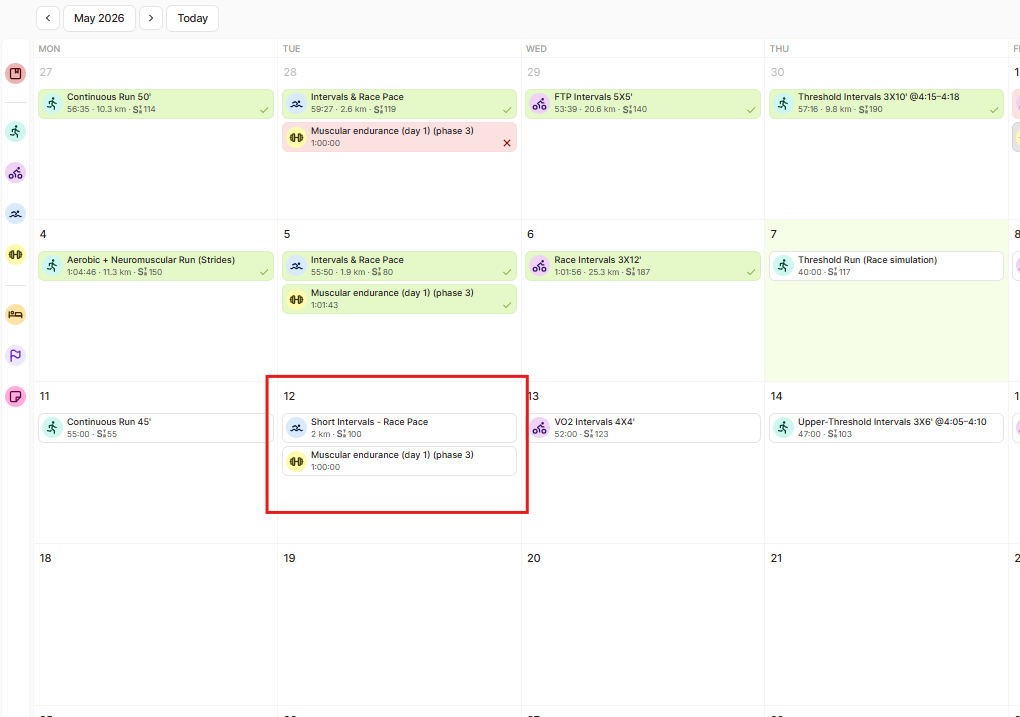
When you assign multiple workouts to the same day, EndoGusto stacks them in the order you added them. If you want to change that sequence, moving a strength session before a run, for example, you can drag and drop the workout cards directly on the calendar without opening or reassigning anything.
This guide walks you through reordering workouts within a single calendar day.
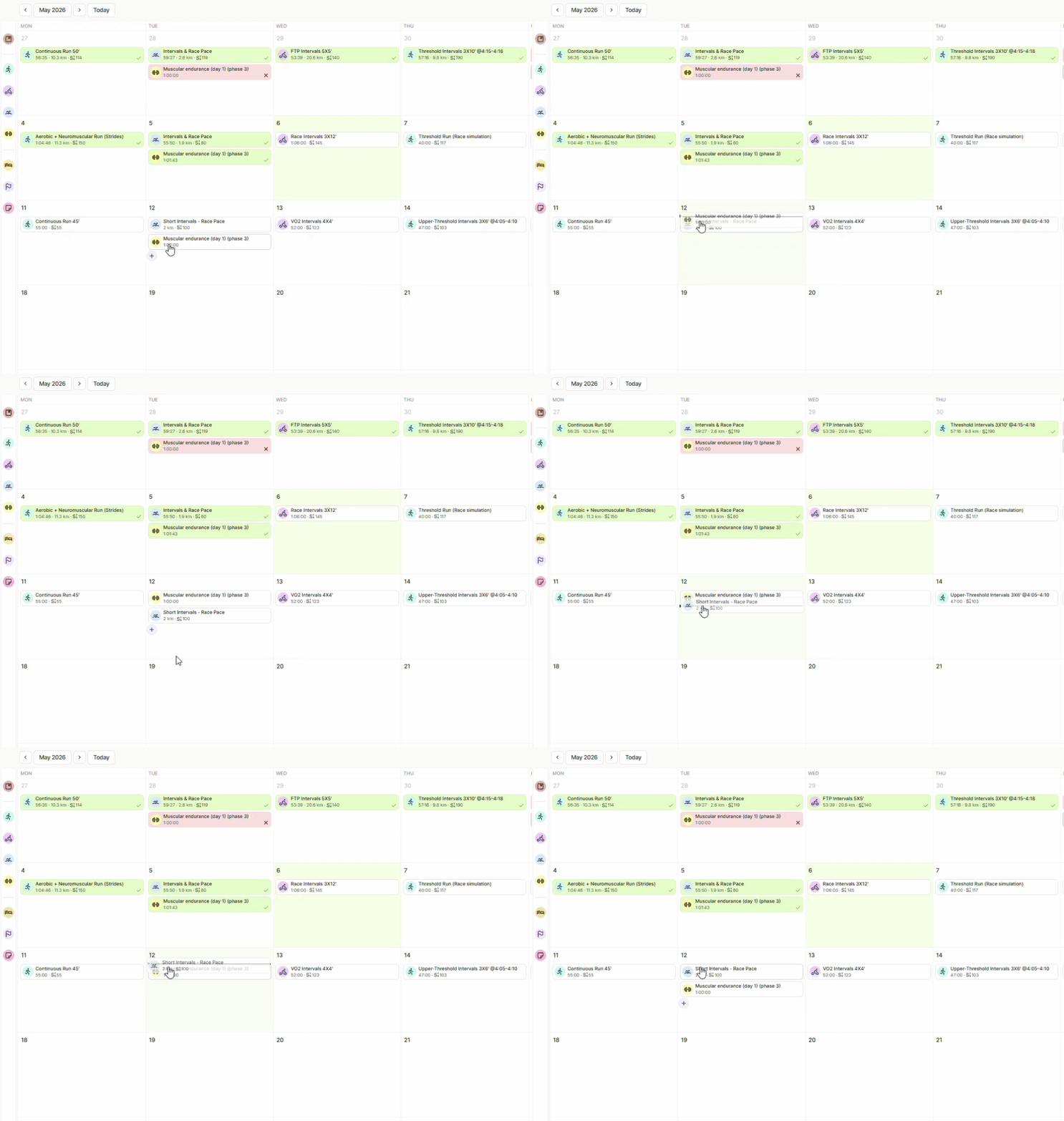
Reorder Workouts on a Calendar Day
Step 1: Open Your Calendar
Go to your Calendar and find a day that has two or more workouts assigned to the same athlete. The workouts appear stacked as cards inside that day's column, one below the other.
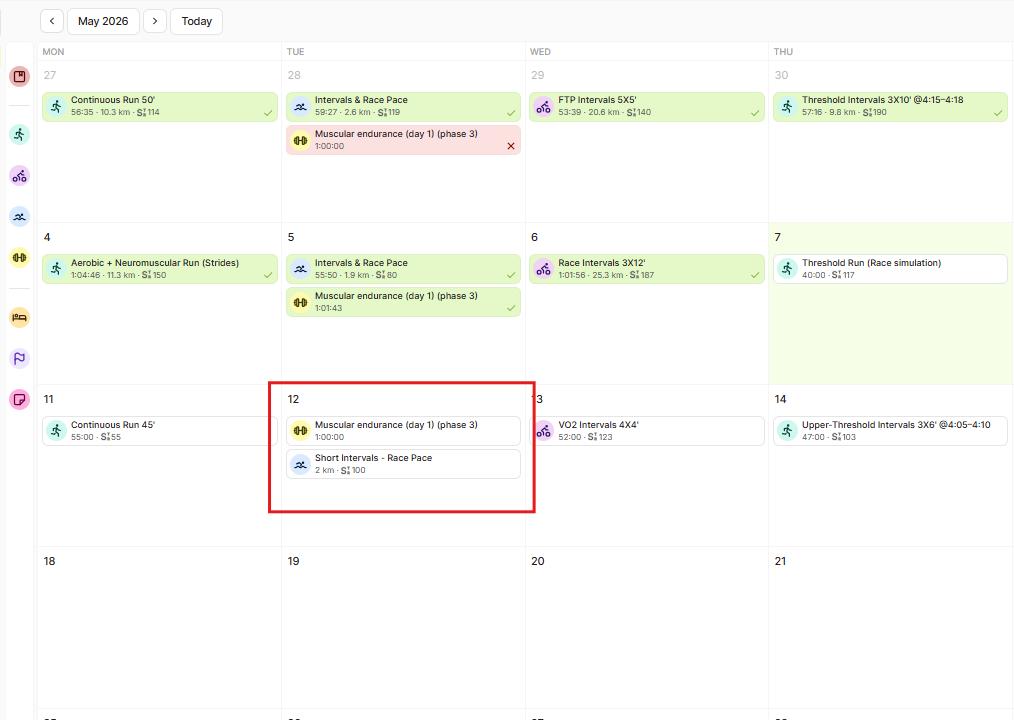
Step 2: Hover Over the Workout You Want to Move
Move your cursor over the workout card you want to reposition. A drag handle -- a small arrow icon -- appears on the left edge of the card.
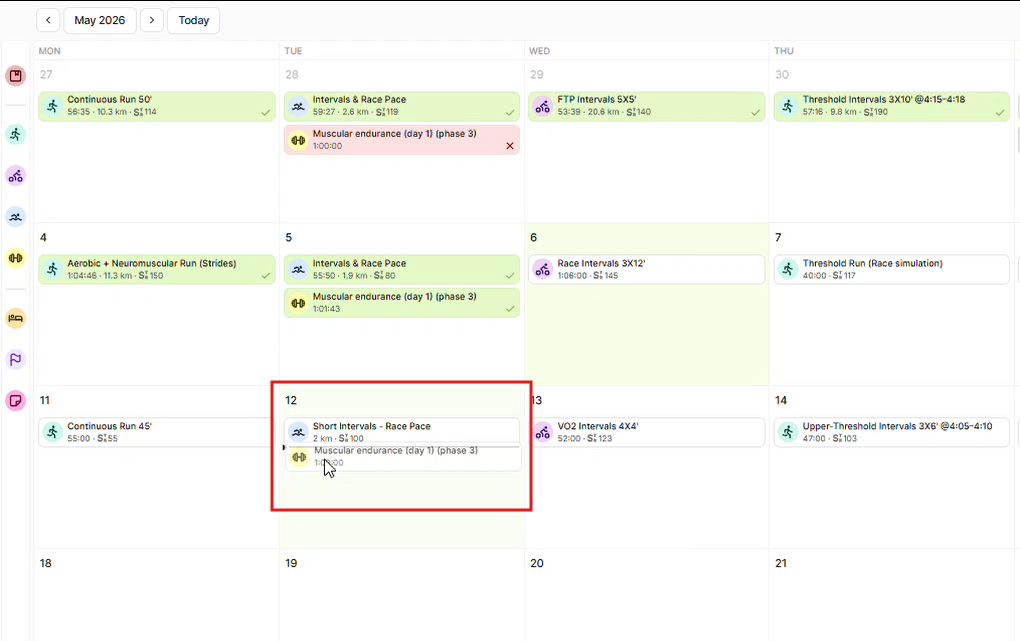
Step 3: Drag the Card to the New Position
Click and hold the drag handle, then drag the card up or down within the same day. As you drag, the other workout card shifts and appears as a ghost placeholder to show where the moved card will land when you release.
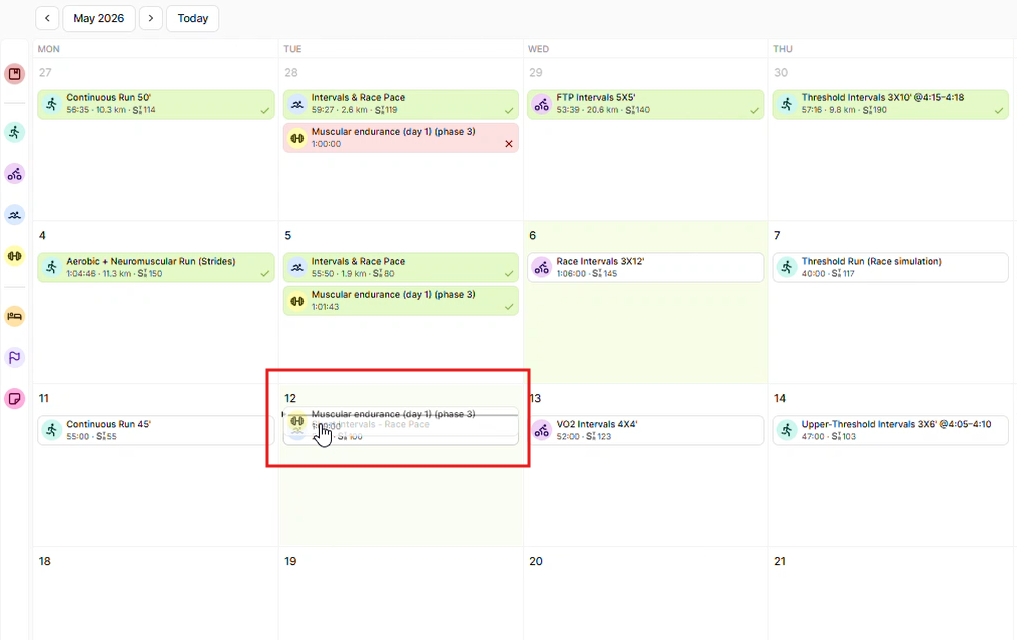
Step 4: Drop the Card in the New Position
Release the card when it's in the position you want. The cards snap into their new order instantly. No save button needed -- the change is applied immediately.
Tips for Coaches
- Reorder without reopening the workout. Drag and drop works directly on the calendar view. You don't need to open the Workout Builder or reassign the session to change the order.
- The order reflects what your athlete sees. The top card is the first session your athlete sees listed for that day. Put the workout you want them to do first at the top.
- Use this with multi-sport days. Reordering is especially useful when combining different session types on the same day, like a run and a strength workout, where sequence matters for warm-up and recovery.
- Changes apply to that day only. Reordering workouts on one day does not affect how those workouts appear on other days or inside templates.
Need help? Contact us at Support & Feedback or browse the Knowledge Base.