
EndoGusto lets you schedule new sports beyond running, cycling, and swimming directly on your athlete's calendar. With the Other sports option, you can assign activities such as yoga, hiking, Pilates, walking, skiing, and more, each with a duration, an optional distance, and coach instructions. The activity appears on the calendar as its own card, keeping your athlete's full training picture in one place.
This guide walks you through scheduling new sports on the calendar.
Schedule a New Sports Activity
Step 1: Open the Activity Menu on a Calendar Day
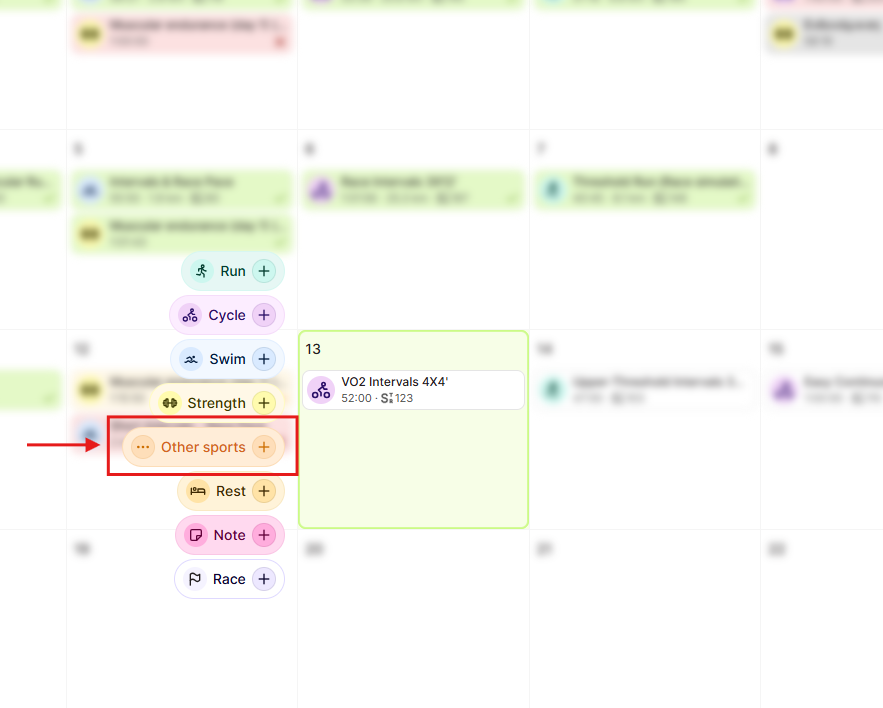
Go to your Calendar and click the + sign on the day you want to schedule the activity. A menu appears listing all available activity types: Run, Cycle, Swim, Strength, Other sports, Rest, Note, and Race.
Click Other sports + from the menu.
Step 2: Review the Assign Workout Form
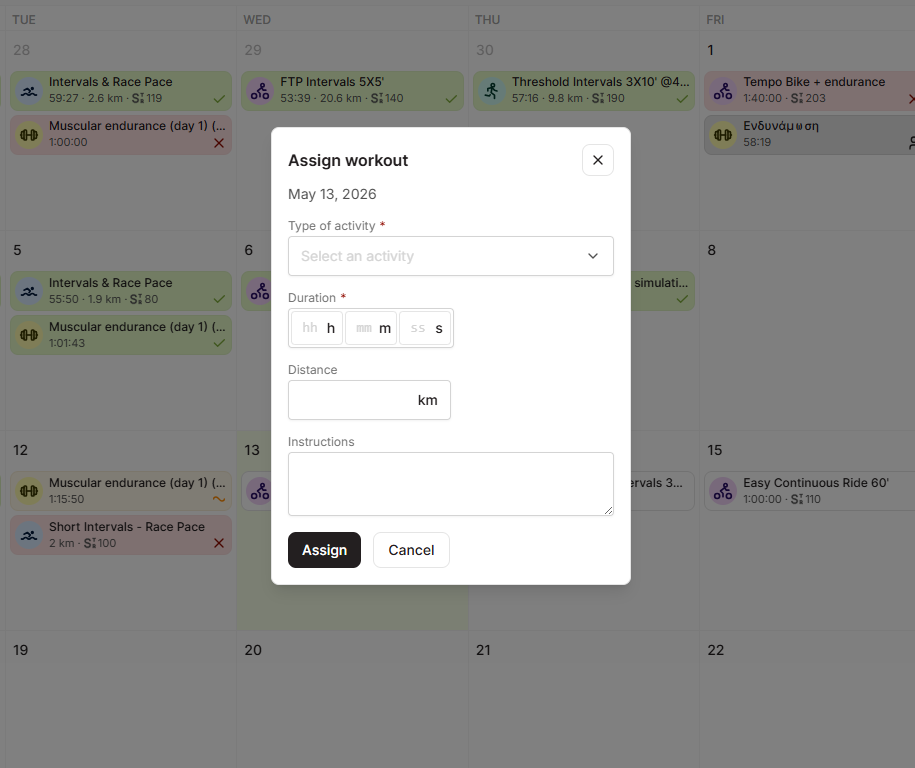
The Assign workout panel opens. It shows the selected date at the top and four fields below: Type of activity, Duration, Distance, and Instructions. Type of activity and Duration are required.
Step 3: Select the Activity Type
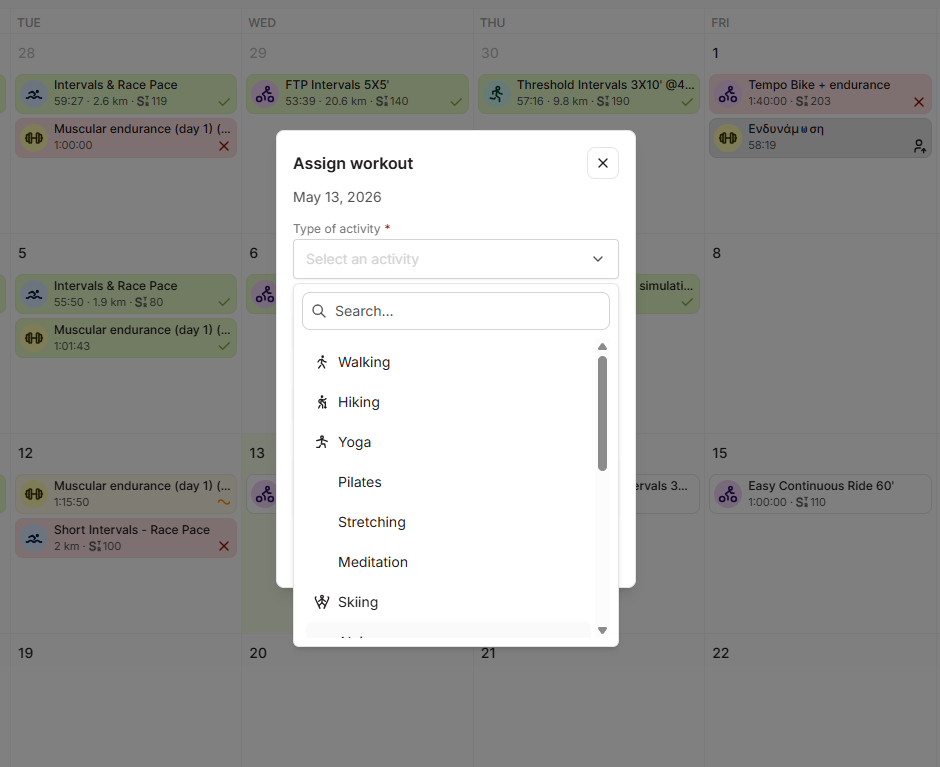
Click the Type of activity dropdown. A searchable list of activities appears. Use the Search... field at the top to find a specific activity, or scroll through the list. Available options include Walking, Hiking, Yoga, Pilates, Stretching, Meditation, Skiing, and more.
Click the activity you want to assign.
Step 4: Set the Duration and Optional Details
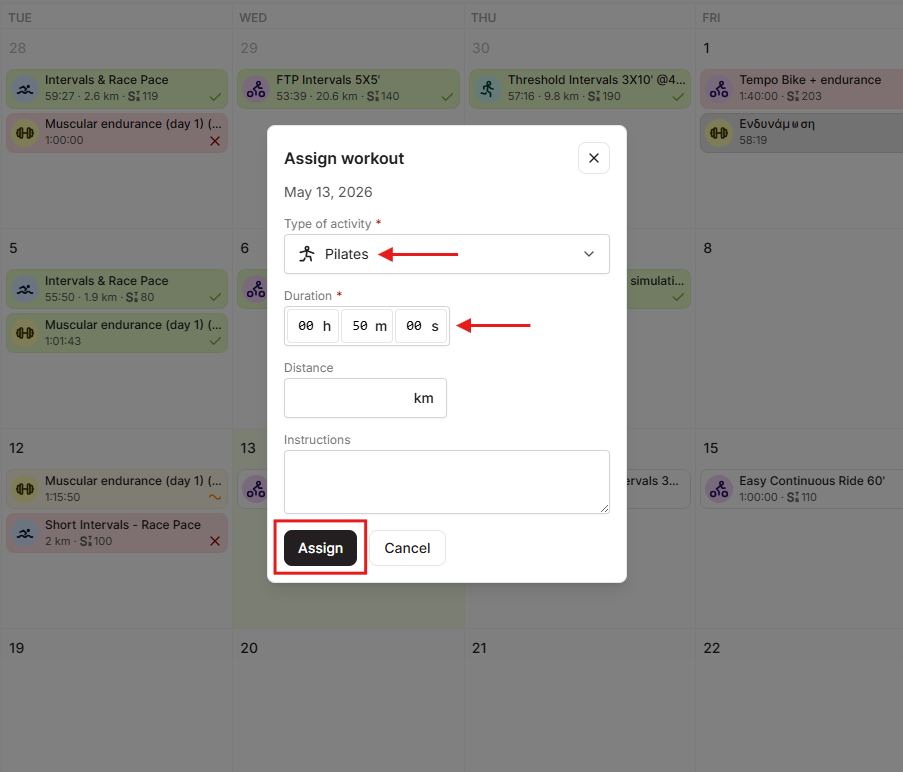
Enter the session duration in the Duration fields (hours, minutes, seconds). Duration is required when scheduling Other Sports activities.
Optionally, enter a target distance in the Distance field and any session notes in the Instructions field. Instructions appear on the activity card your athlete sees on their calendar.
Step 5: Assign the Activity
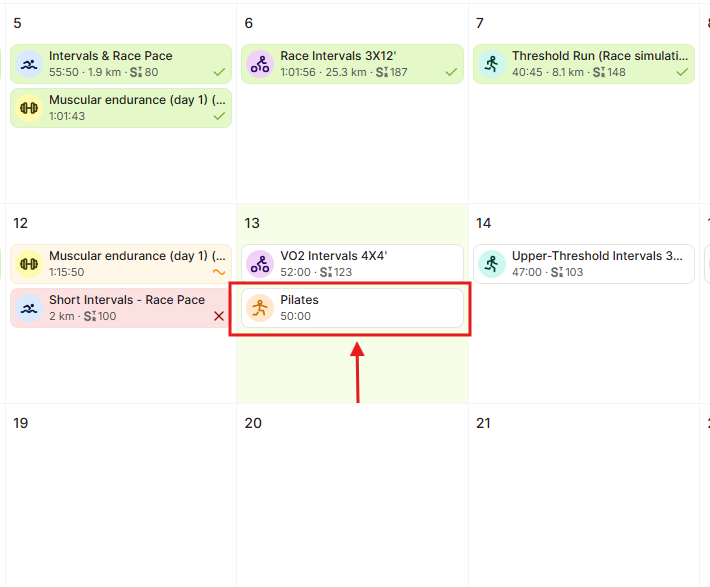
Click Assign. The activity card appears immediately on the calendar for that day, showing the activity name, its icon, and the duration you set.
Tips for Coaches
- Schedule different types of activities for your athletes. Running, cycling, and swimming have their own dedicated entries in the activity menu. Other sports covers everything else, mobility, cross-training, yoga, outdoor activities, and more.
- Search the dropdown to save time. The activity list is long. Type the first few letters of the activity name in the Search... field to find it immediately instead of scrolling.
- Duration is the only required field. Distance and Instructions are optional. Fill them in when they add useful context for your athlete, and skip them when they don't.
- New sports stack with workouts on the same day. You can assign a run and a yoga session to the same day. Both cards appear in the day column and your athlete sees them in the order you added them. Use drag and drop to reorder them if needed.
- Keep instructions brief. Your athlete reads these on their calendar before or during the session. A short cue like "Focus on breathing and mobility" is more useful than a long description.
Need help? Contact us at Support & Feedback or browse the Knowledge Base.