
EndoGusto's Announcements feature lets you post messages that your athletes see directly in their EndoGusto feed. You control who receives each post: you can reach all your athletes at once, or target a specific group or set of individuals. You can also attach files to any post.
This guide walks you through creating an announcement and configuring who can see it.
Create an Announcement
Step 1: Open Announcements
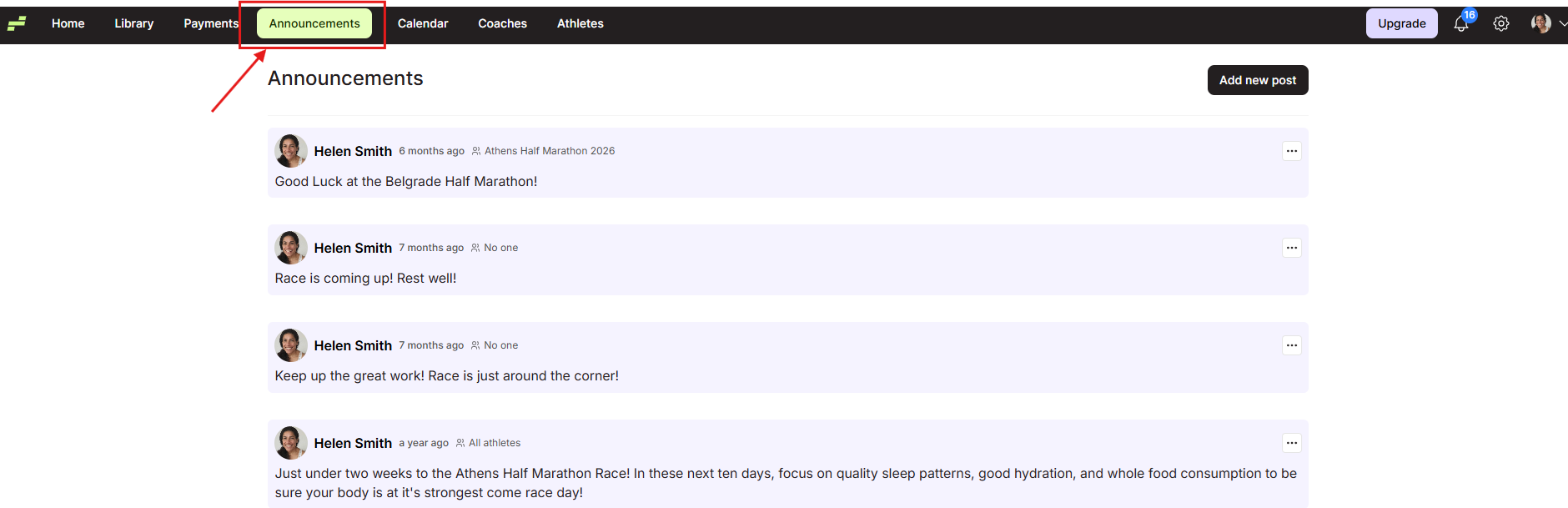
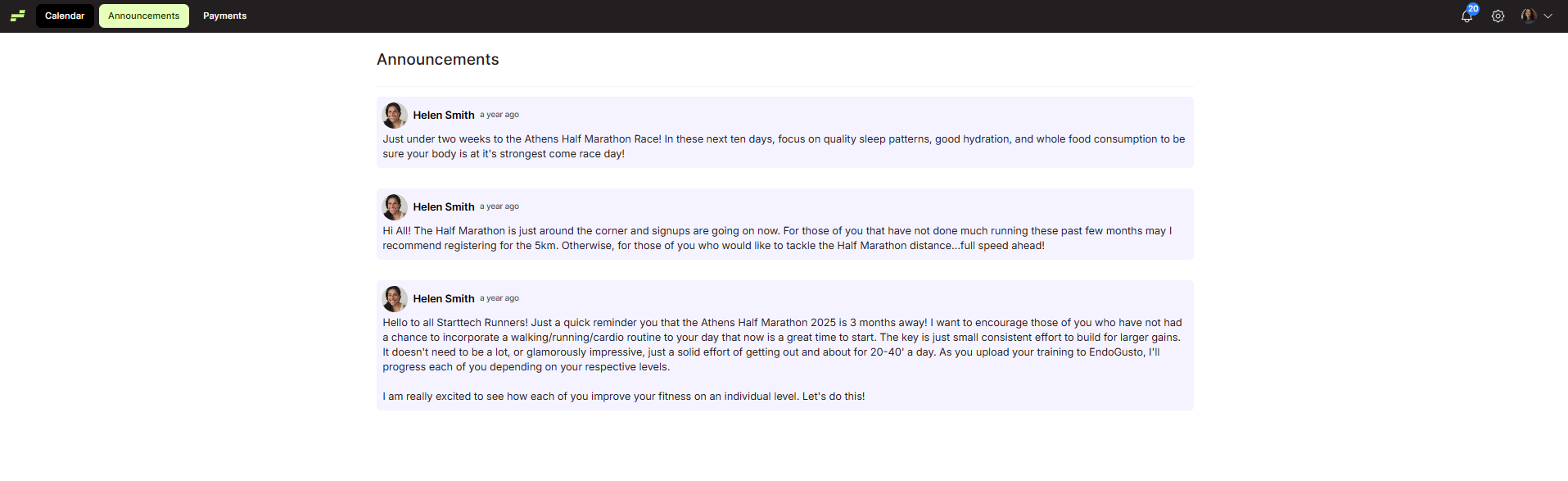
Click Announcements in the main navigation bar at the top of the page. The Announcements feed opens, showing all posts you have published so far. Each post displays the audience label (for example, All athletes or a group name) next to your name.
Step 2: Start a New Post
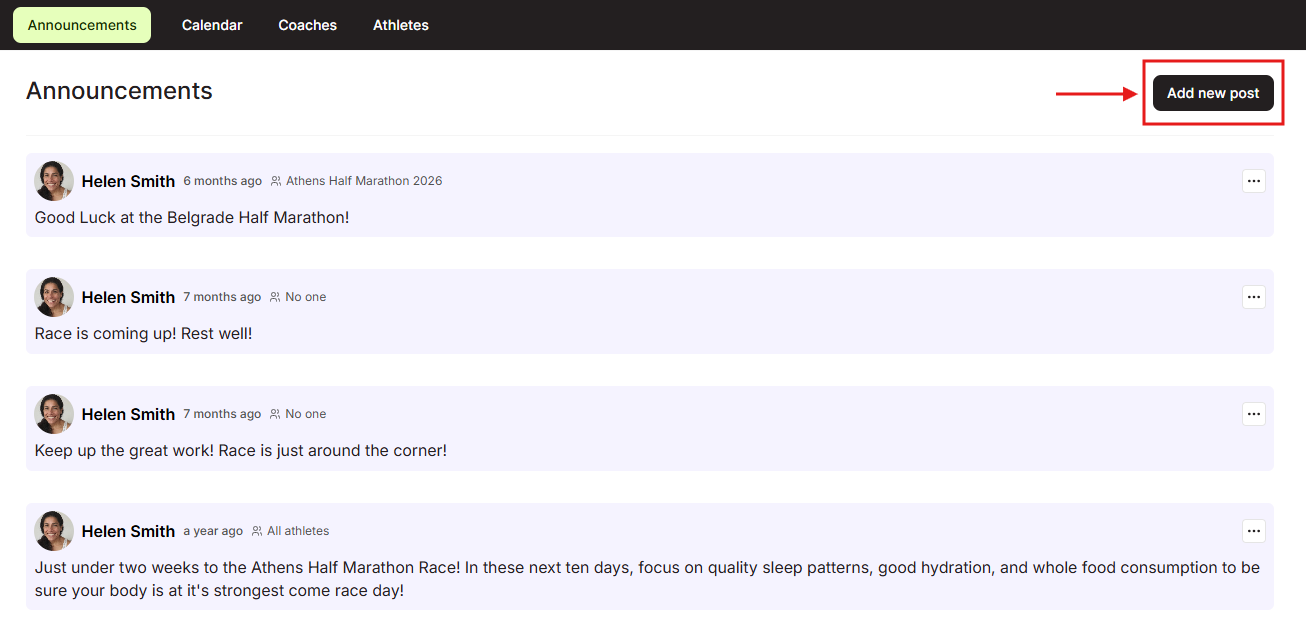
Click Add new post in the top right corner. The Add new post modal opens with a Message field at the top and a formatting toolbar above it.
Step 3: Write Your Message
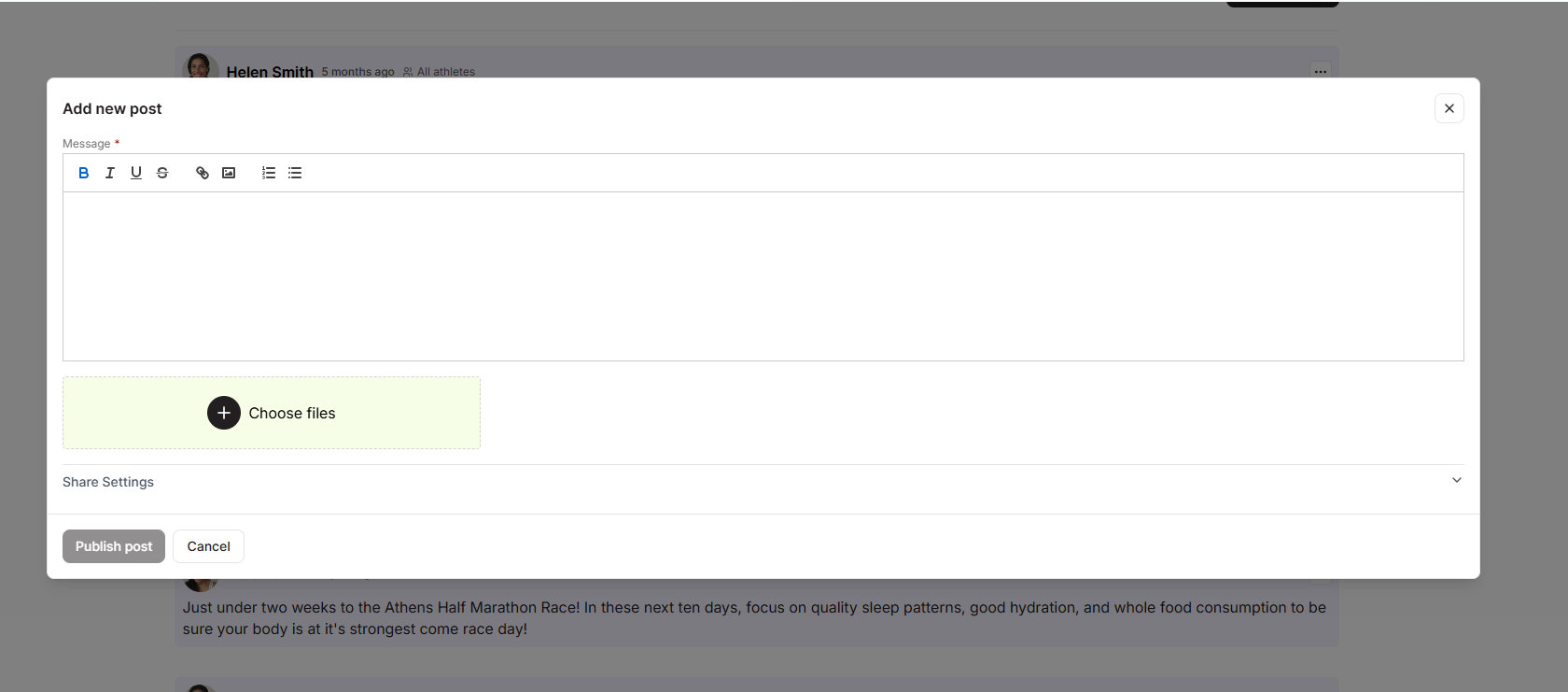
Click inside the Message field and type your announcement. Use the formatting toolbar to style your text: bold, italic, underline, strikethrough, links, images, and bulleted or numbered lists are all available. The Publish post button activates as soon as you type at least one character.
Step 4: Attach Files (Optional)
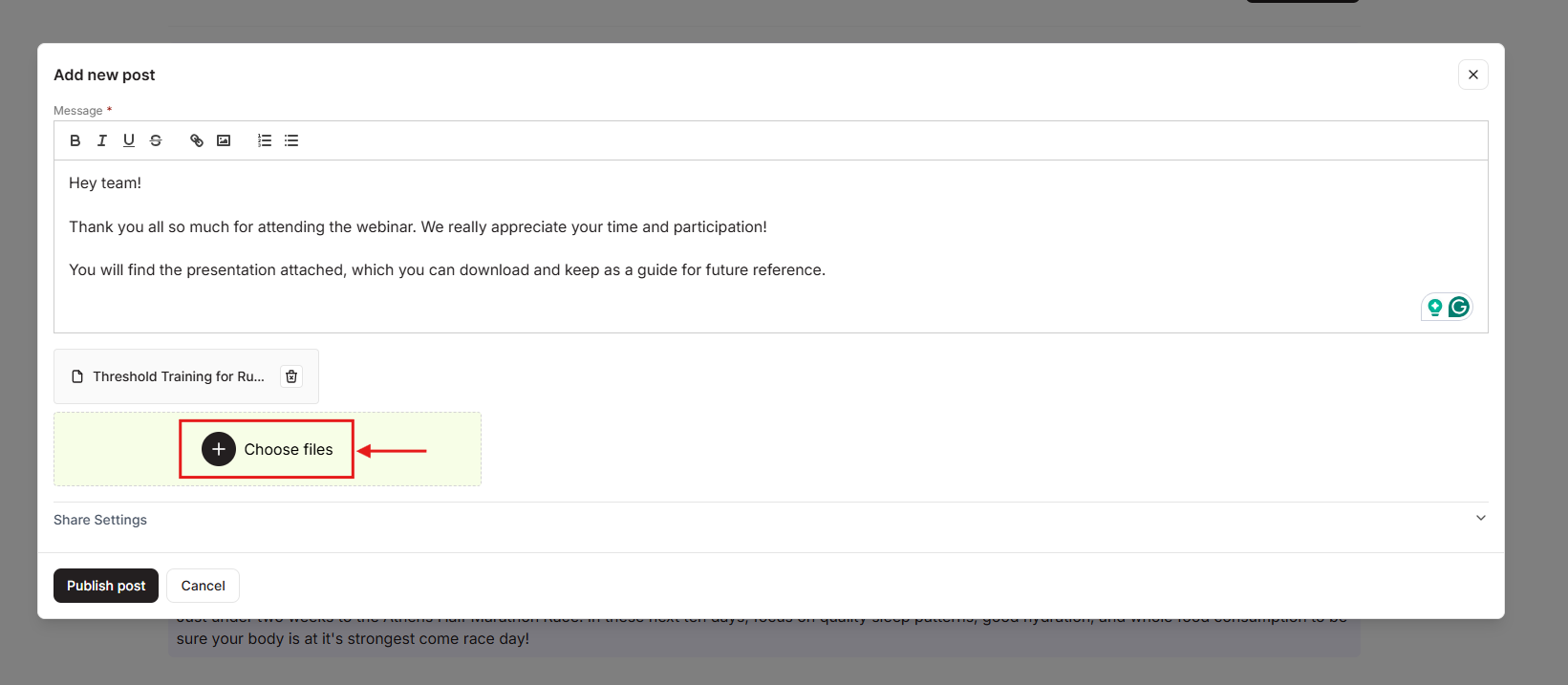
If you want to include a file with your post, click Choose files in the attachment area below the message field. Select the file from your device. The file name appears in the attachment area once it uploads. You can attach files to any post regardless of the audience you choose.
Step 5: Open Share Settings
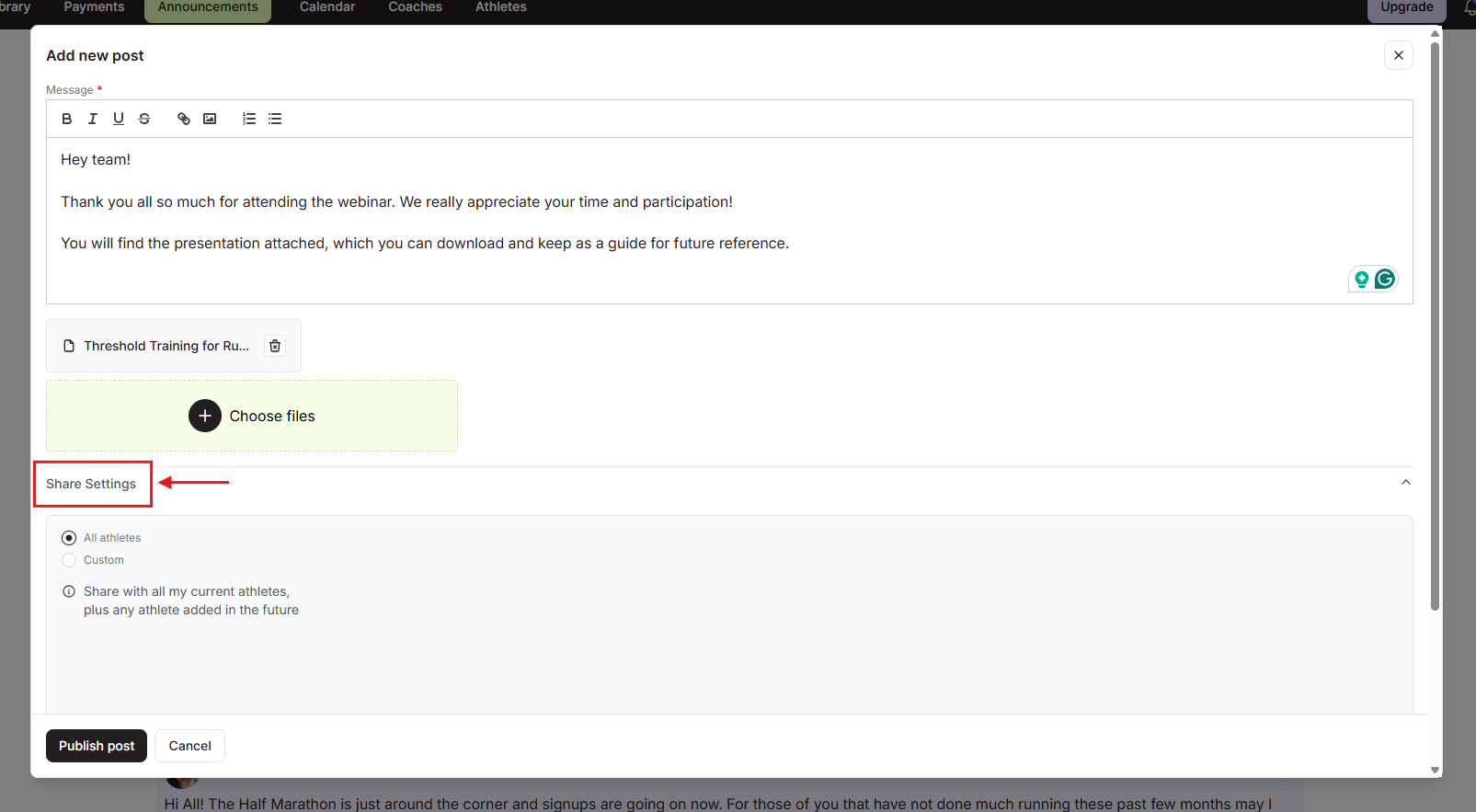
Click Share Settings below the attachment area to expand the audience options. Two radio buttons appear:
- All athletes (selected by default) -- shares the post with every athlete on your roster now, plus any athlete you add in the future.
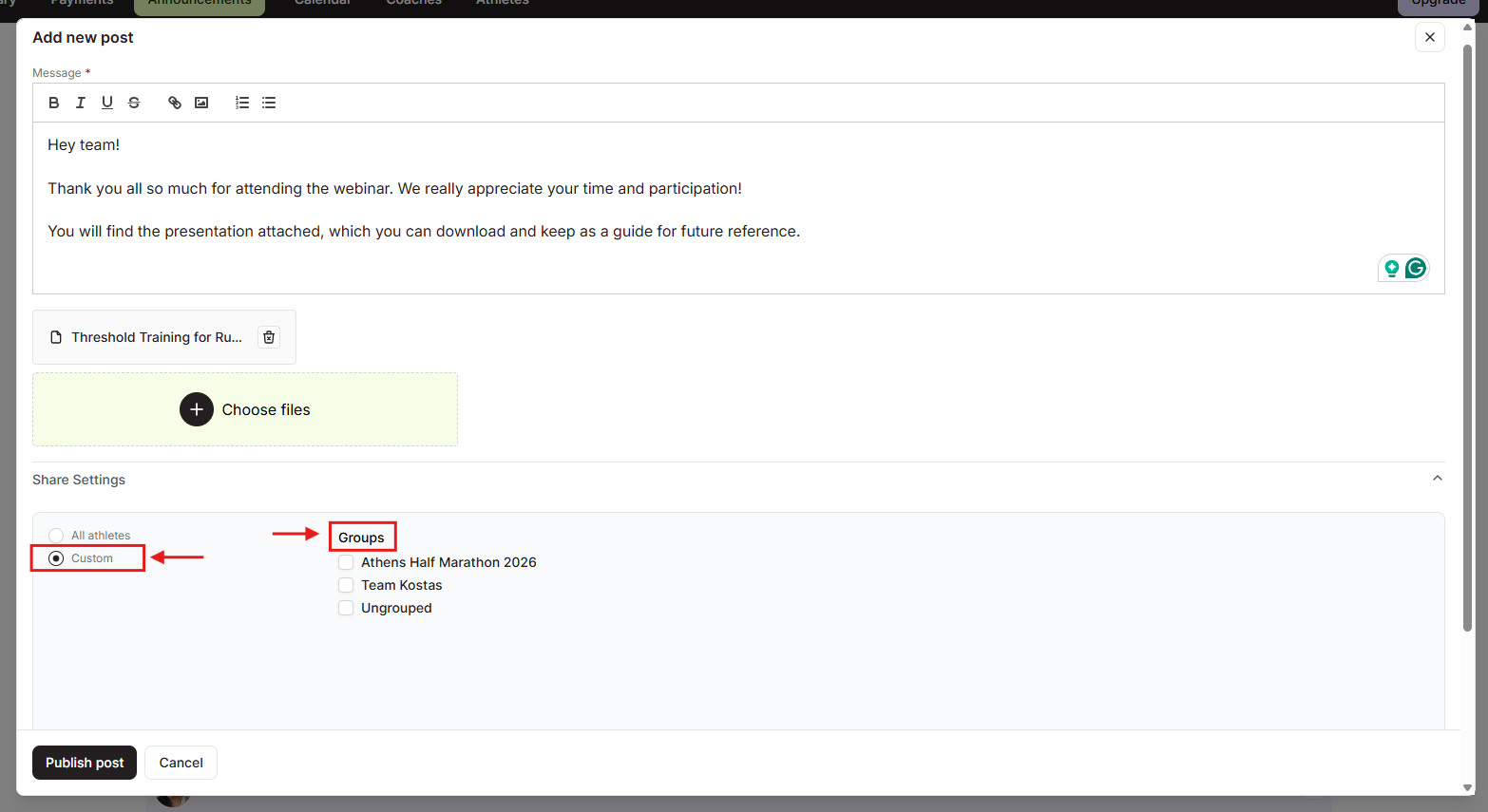
- Custom -- lets you choose specific groups or individual athletes.
If you want to reach your entire roster, leave All athletes selected and skip to Step 7.
Step 6: Select Specific Groups or Athletes
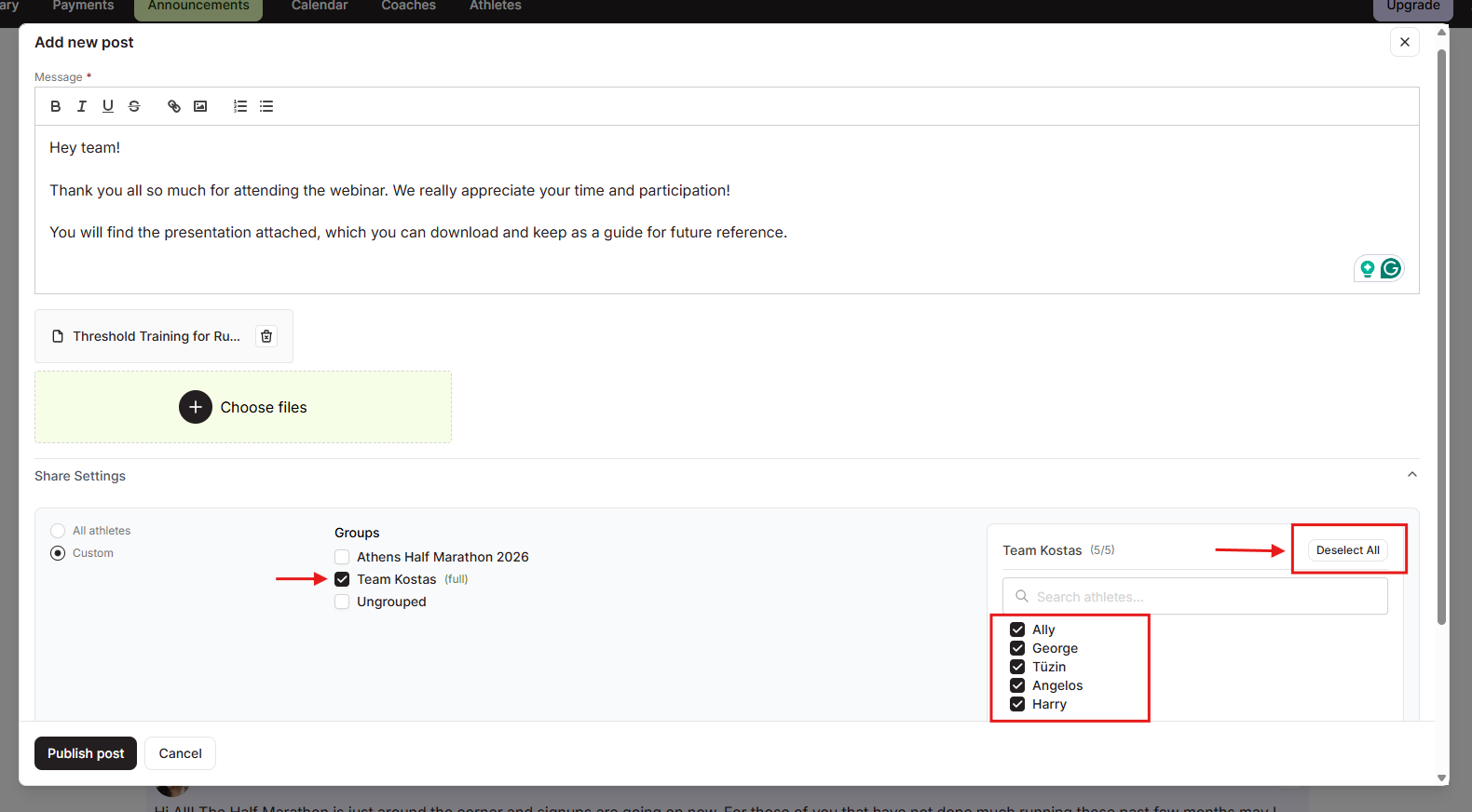
Select Custom to open the Groups list. Your athlete groups appear as checkboxes. Check the group or groups you want to include. You can select multiple groups at once.
When you check a group, a panel opens on the right side showing the group name, a total athlete count (for example, Team Kostas (5/5)), a Search athletes... field, and a checkbox for each athlete in the group. All athletes in the group are selected by default. To remove someone from this post, uncheck their name. To remove everyone at once, click Deselect All.
Step 7: Publish the Post
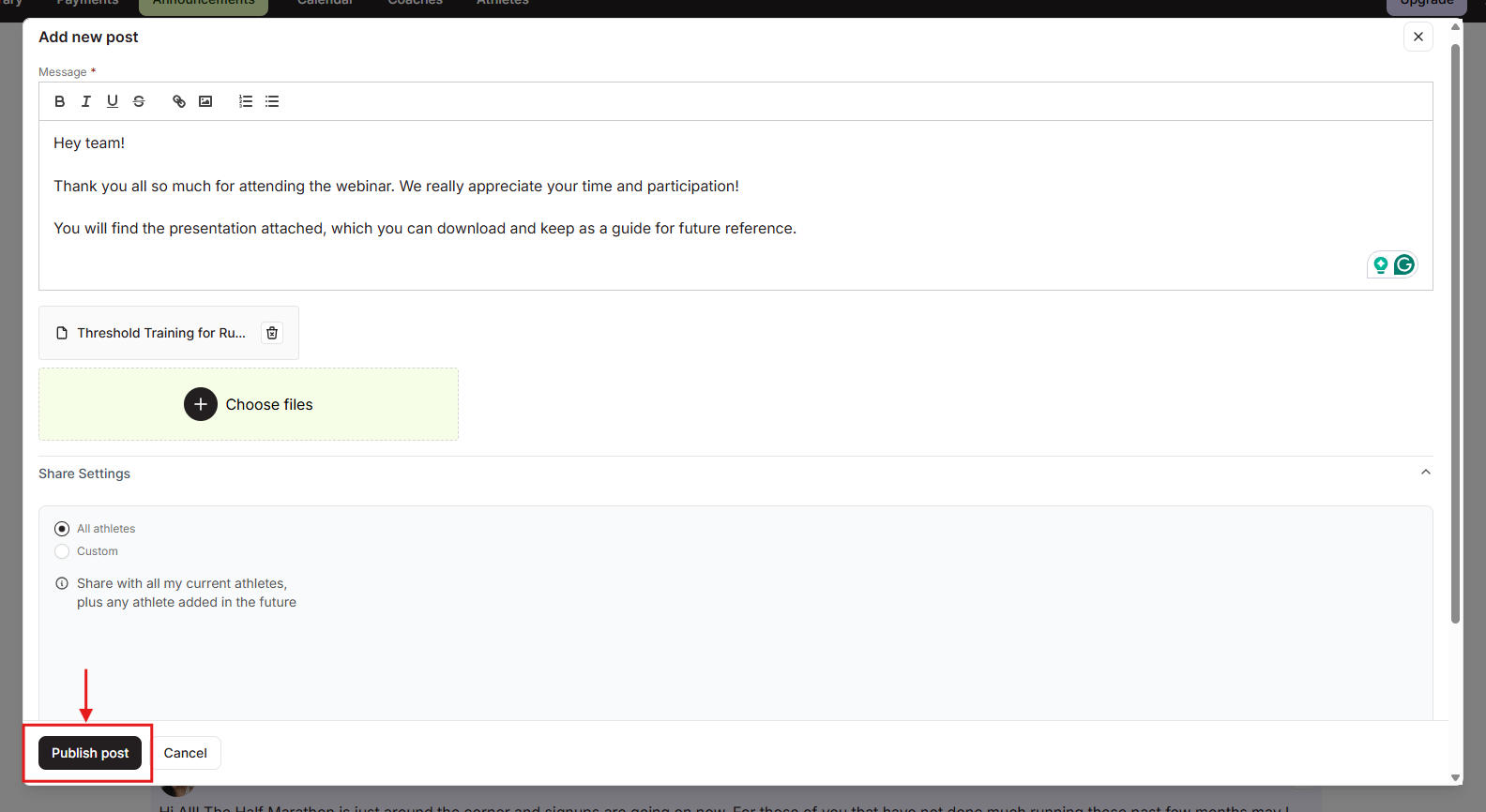
Click Publish post. The modal closes and your announcement appears at the top of the Announcements feed. The audience label next to your name reflects the setting you chose -- for example, the group name if you used Custom, or All athletes if you used the default.
What Your Athletes See
Athletes see your announcement in their EndoGusto Announcements feed as soon as you publish it. The post shows your name, the time it was published, and the full message text. Any attached file appears below the message and is available to open directly from the feed, without downloading. Athletes who are not included in the audience you selected will not see the post.
Tips for Coaches
- Use All athletes for general updates. Race reminders, schedule changes, or motivational messages that apply to your entire roster work best with the default All athletes setting. New athletes you onboard later will also see these posts.
- Use Custom for targeted communication. If you coach multiple groups preparing for different events, the Custom setting lets you send relevant information only to the athletes it concerns -- keeping each athlete's feed clean and focused.
- Fine-tune within a group. After selecting a group, you can deselect individual athletes from the right-side panel. This is useful when one member of a group is on a different program or has already received the information through another channel.
- Search within large groups. The Search athletes... field in the individual athlete panel lets you find a specific person quickly when a group has many members.
- Attach files for reference materials. Documents such as race-day schedules, nutrition guides, or training plans can be attached directly to a post so athletes have everything in one place.
Need help? Contact us at Support & Feedback or browse the Knowledge Base.