
EndoGusto matches most recorded sessions to their planned workouts automatically. But athletes with irregular schedules, or those who train without a connected tracker, sometimes end up with activities sitting unmatched on the calendar, which throws off your completion data. Matching an activity manually links the real recorded data to the plan, so the workout shows as Completed and you can compare planned targets against what your athlete actually did, side by side. If you ever match the wrong activity, you can unmatch it just as easily.
This guide walks you through matching an activity to a planned workout and unmatching it when you need to.
Match an Activity to a Planned Workout
Step 1: Open the Planned Workout
Go to your Calendar and click the planned workout you want to match. The workout card opens and shows the Planned status near the top, above the planned data.
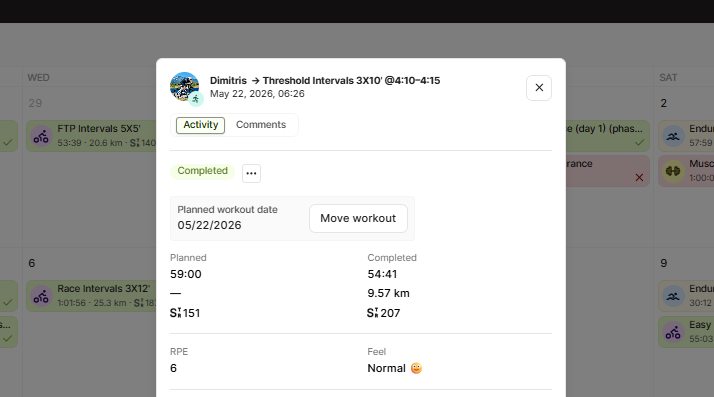
Step 2: Open the Options Menu
Click the ... menu next to the activity status (Completed, Missed, etc.). A menu opens with Mark as done, and Match workout.
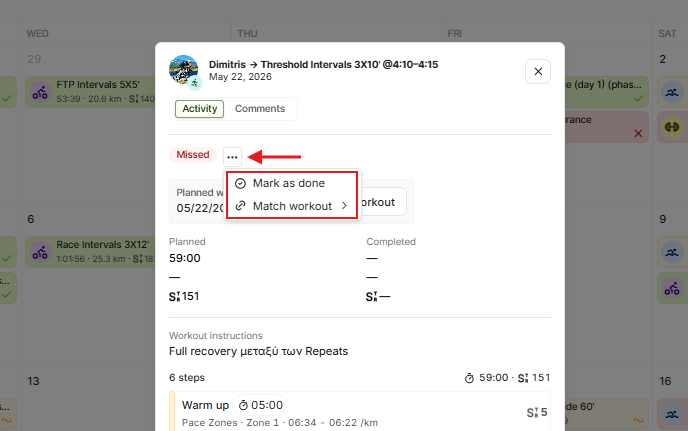
Step 3: Select the Activity to Match
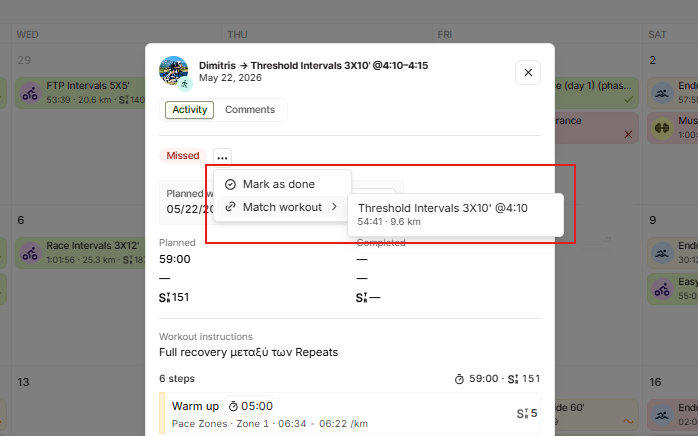
Hover over Match workout to expand the submenu. EndoGusto lists your athlete's recorded activities that can be matched to this workout, each showing its duration and distance. Click the activity you want to link to the plan.
What Happens After You Match an Activity
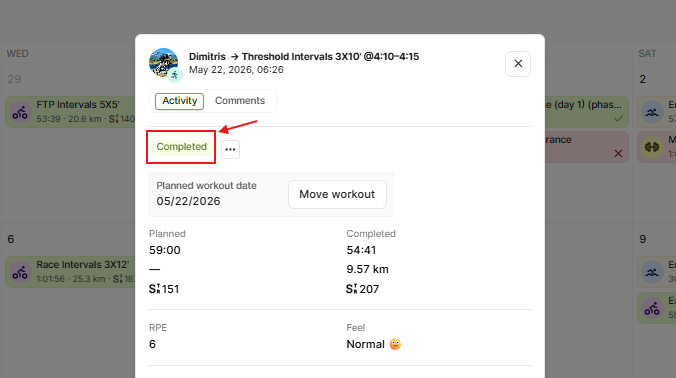
Once you match the activity, the workout status changes from Missed to Completed. The card now shows two columns: Missed targets on the left and the Completed data from the recorded activity on the right, including duration, distance, and per-step values. Your athlete's RPE and How I felt fields also become available on the card.
Unmatch an Activity from a Workout
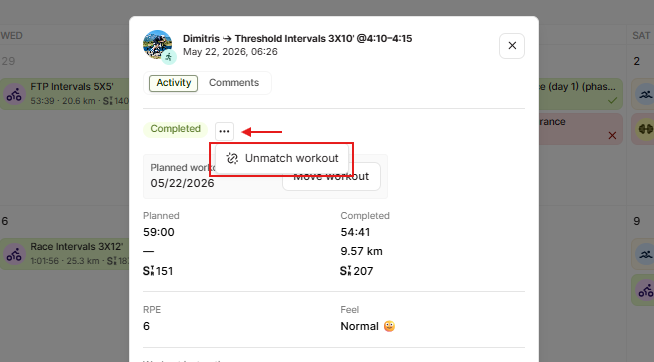
Step 4: Open the Options Menu and Unmatch
If you matched the wrong activity or need to reverse the link, open the completed workout from your Calendar and click the ... menu next to the Completed status. Click Unmatch workout. The activity is unlinked, and the workout returns to its Planned state so you can match a different activity if needed.
Tips for Coaches
- Match when auto-sync doesn't catch it. EndoGusto matches most sessions automatically. Use Match workout for the ones that slip through, like activities from athletes on irregular schedules or those training without a connected tracker, so your completion data stays accurate.
- Check the duration and distance before matching. The submenu shows each activity's time and distance. Use those to confirm you're linking the right session, especially on days with more than one recorded activity.
- Unmatch to fix mistakes, not to delete. Unmatch workout only breaks the link between the plan and the activity. The recorded activity stays on the calendar and the planned workout returns to Planned.
- Review the side-by-side data after matching. Once matched, the Planned and Completed columns let you see at a glance how closely your athlete hit their targets.
Need help? Contact us at Support & Feedback or browse the Knowledge Base.