
EndoGusto names each activity automatically based on the session it imports, but you can change that name yourself. Editing your activity name lets you label a session in a way that makes sense to you, so it is easy to spot on your calendar. The new name shows up wherever the activity appears, including in your coach's view.
This guide walks you through editing your own activity name from the calendar.
Edit Your Activity Name
Step 1: Open the Activity
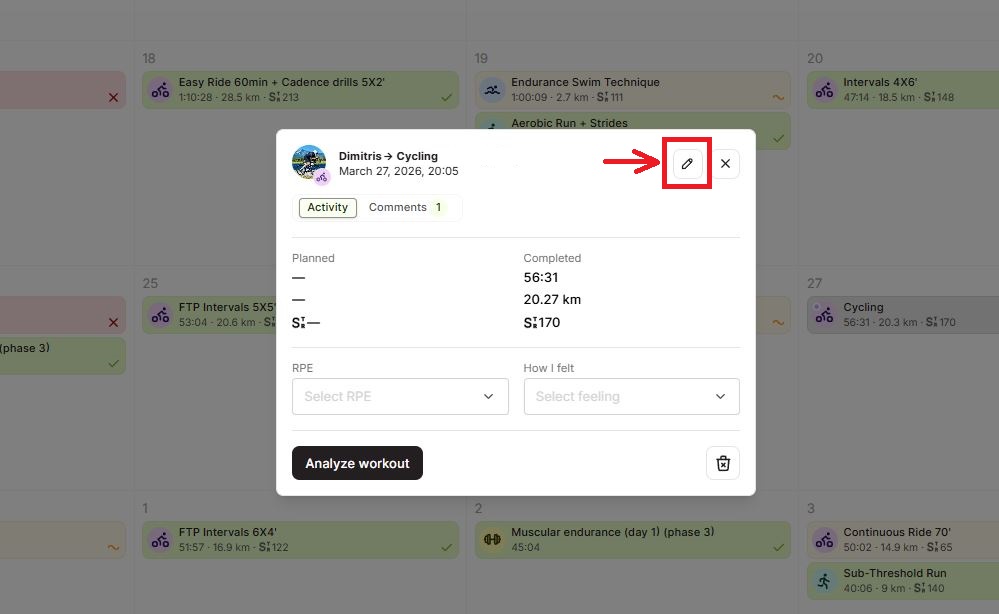
Go to your Calendar and click the activity you want to rename. The activity detail popup opens, showing the Activity and Comments tabs, your Planned and Completed stats, and the RPE and How I felt fields.
In the top right of the popup, click the pencil icon.
Step 2: Type the New Name
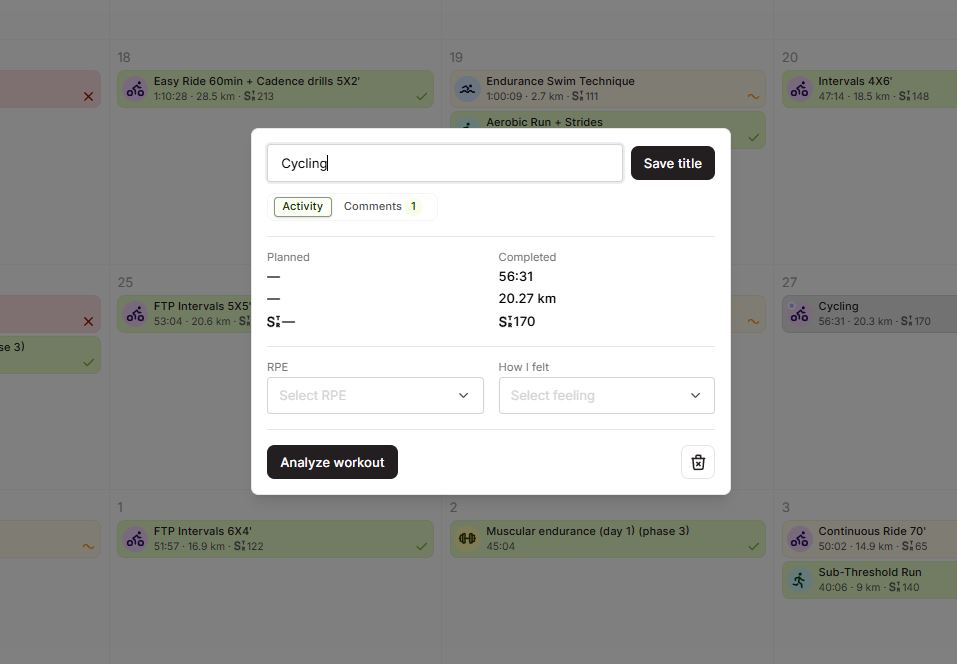
The activity name turns into an editable text field with the current name already filled in. Click inside the field, clear the existing text if you want, and type the new name for your activity.
Step 3: Save Your New Name
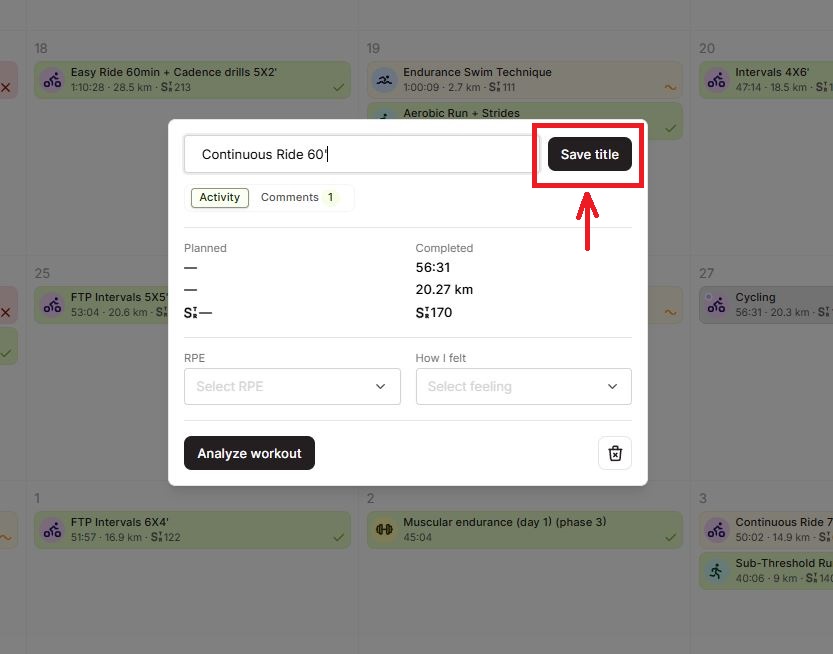
Click the "Save title" button next to the text field. The name updates right away and the popup returns to the activity detail view.
What Your Coach Sees
The name you set replaces the original activity name everywhere the session appears, including your coach's calendar. Use a clear, descriptive name so your coach can recognize the session at a glance.
Tips for Athletes
- Name sessions you want to find later. A clear name like "Tempo run" or "Easy recovery" is faster to spot on a busy week than the default import name.
- Keep names short. The activity card on the calendar has limited space, so a few words read better than a full sentence.
- The edit is instant. There is no extra confirmation step. Once you click "Save title", the new name is live.
- You can rename anytime. Open the activity and click the pencil icon again whenever you want to change the name.
Need help? Contact us at Support & Feedback or browse the Knowledge Base.