
Each athlete on EndoGusto has their own set of training zones for running, cycling, and swimming. You can change an athlete's training zones at any time by updating their threshold value (like LTHR, LT Pace, or FTP) and adjusting the percentage that defines each zone. Every zone recalculates instantly as you type, so you see the exact heart rate, pace, or power range before you save.
This guide walks you through changing an athlete's training zones for each sport, one metric at a time.
Open the Athlete's Training Zones
Step 1: Select the Athlete
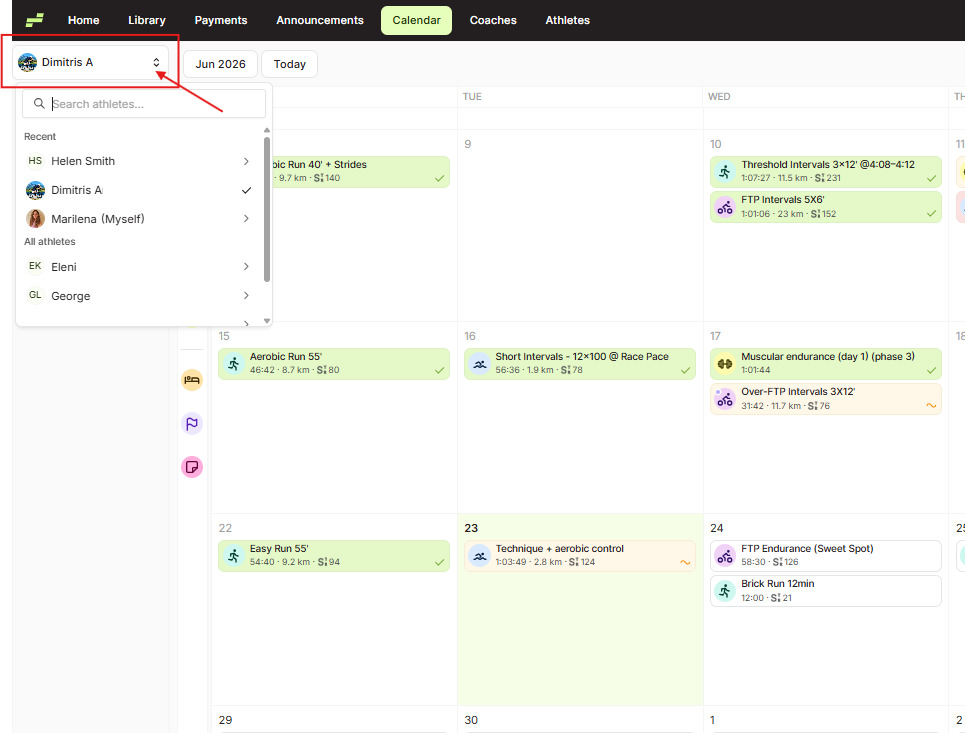
Go to your Calendar and click the athlete selector at the top left (it shows your own name by default). A dropdown opens
Step 2: Open Training Zones
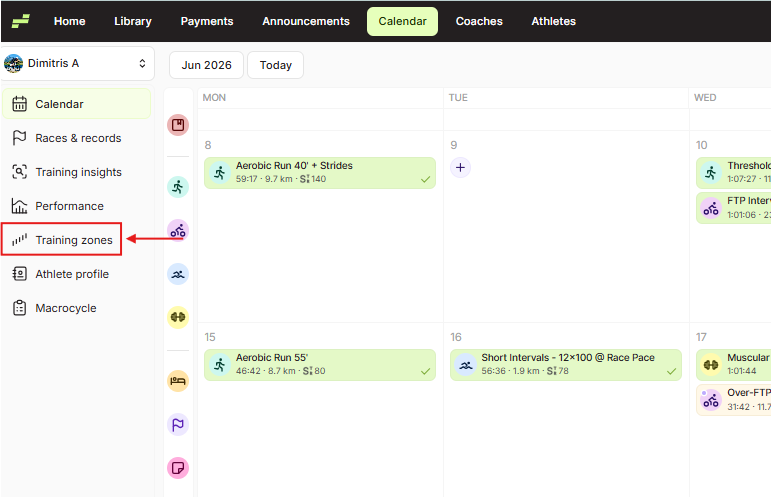
With the athlete selected, a sidebar appears on the left with their personal sections. Click Training zones in that sidebar. The athlete's Training Zones page opens.
Step 3: Choose the Sport
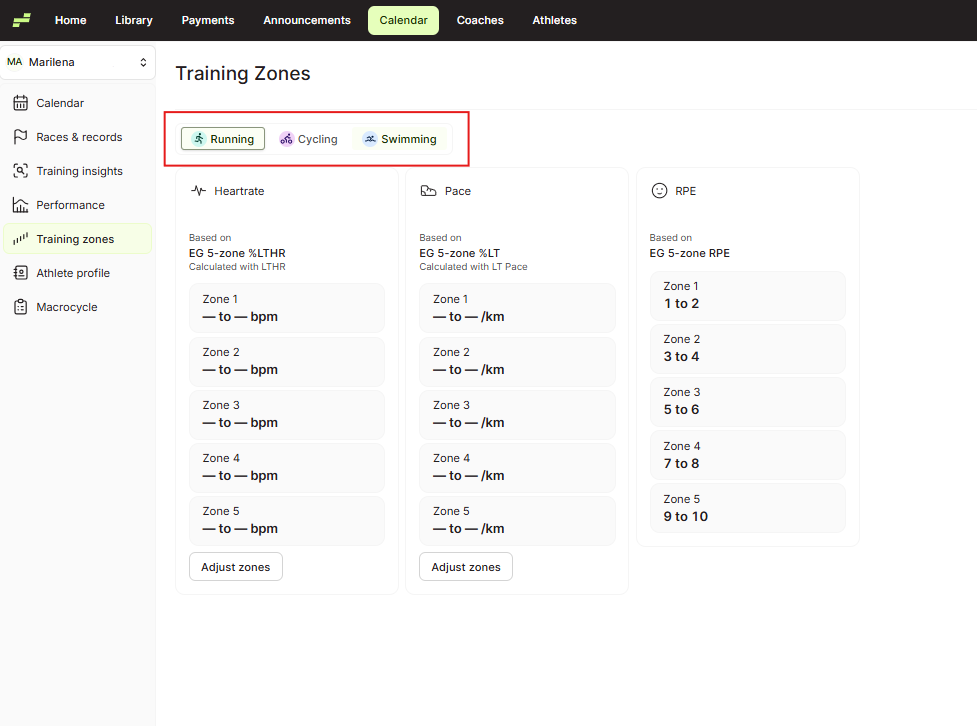
At the top of the page you'll see three sport tabs: Running, Cycling, and Swimming. Click the sport you want to configure. Each sport shows its own set of metric cards, since the zones are calculated differently per sport.
- Running shows Heartrate, Pace, and RPE cards.
- Cycling shows Heartrate, FTP, and RPE cards.
- Swimming shows T-Pace and RPE cards.
Step 4: Click Adjust Zones on a Metric Card
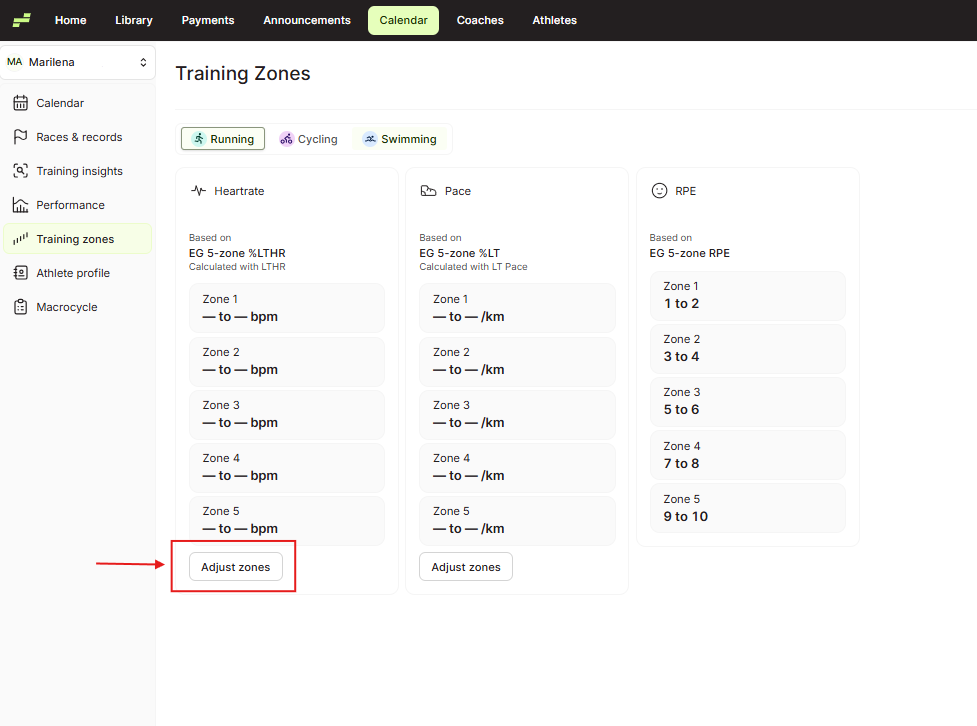
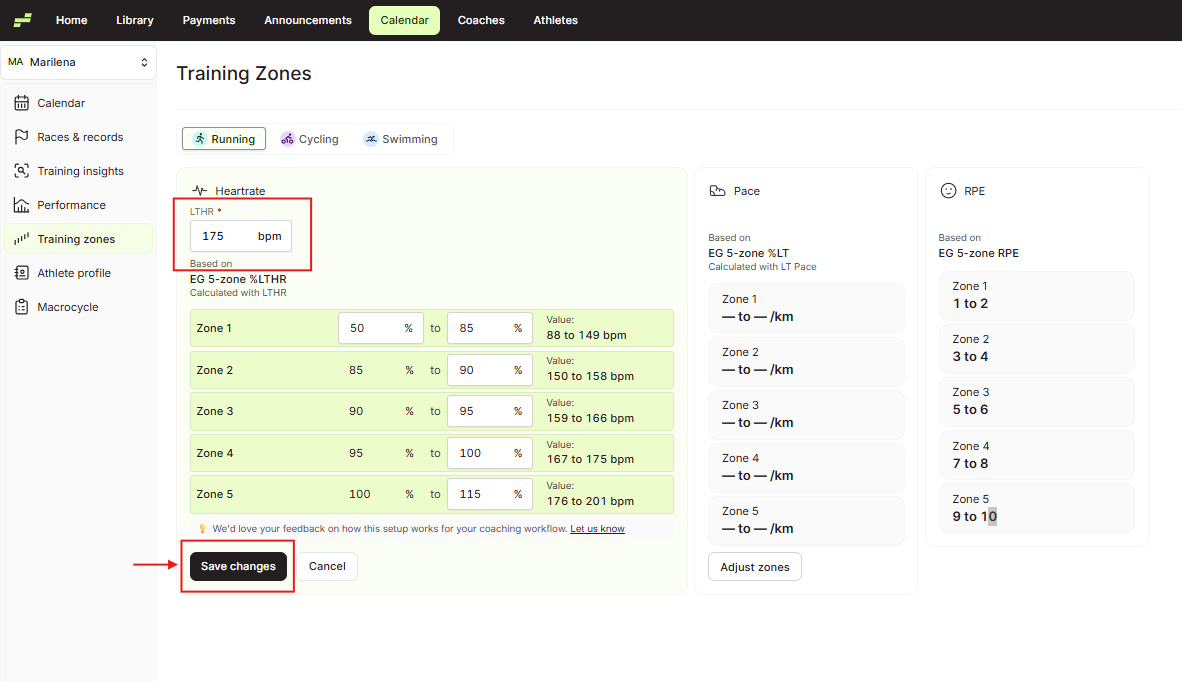
Find the metric card you want to change (for example, Heartrate under Running). Click Adjust zones at the bottom of that card. The card expands into an editable form.
The RPE card uses a fixed scale and has no Adjust zones button, so you won't edit it here.
Step 5: Edit the Threshold and Zone Percentages
The expanded card shows two things you can change:
- The threshold field at the top. This is the athlete's benchmark value the zones are built from. It changes with the metric: LTHR in bpm for Heartrate, LT Pace for Pace, FTP in watts for cycling FTP, and T-Pace per 100m for swimming. Type the athlete's value here.
- The zone percentage fields. Each zone has a start and end percentage. The start of each zone picks up automatically from where the previous zone ends, so you only set the upper boundary. Edit any percentage to reshape that zone.
As you type, the Value: next to each zone updates live to show the resulting range in bpm, pace, or watts. Use these values to check that the zones match your coaching approach before saving.
Step 6: Save Your Changes
Click Save changes at the bottom of the card. The card collapses back to its summary view with the new values, and a green Zones saved message confirms the update. To discard your edits instead, click Cancel.
Repeat Steps 4 to 6 for each metric card and sport you want to change. Each card saves on its own, so you can update Heartrate, then Pace, then switch to Cycling and update FTP, saving as you go.
What Your Athletes See
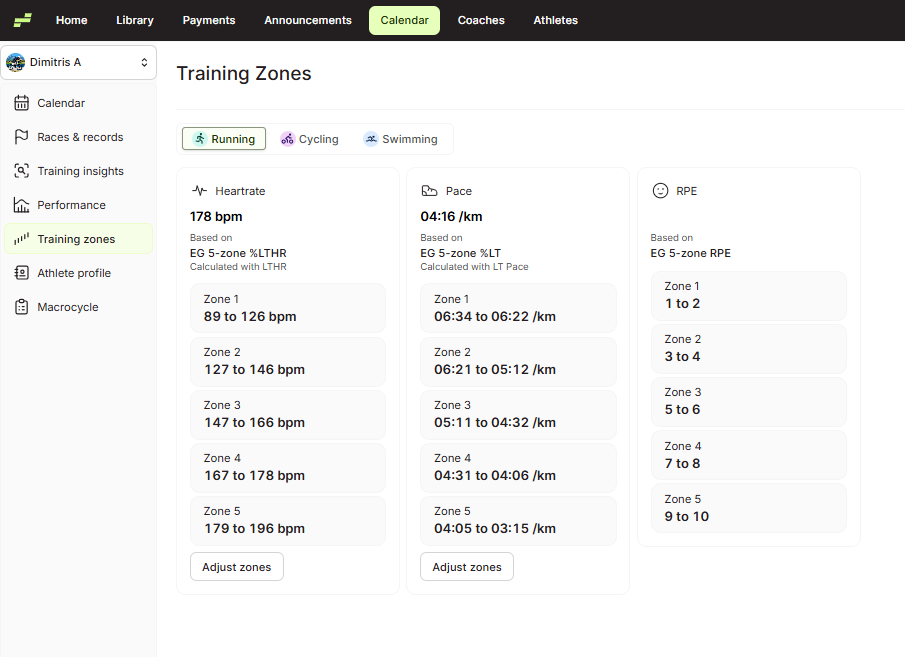
The zones you set here are the ranges your athlete trains in. When you assign a workout with a zone target, the athlete sees the heart rate, pace, or power range that matches the zones on this page. Updating an athlete's zones changes the targets they see going forward, so keep them current as the athlete's fitness changes.
Tips for Coaches
- Update the threshold first, then fine-tune percentages. Most zone changes come from a new threshold value (a fresh LTHR or FTP test). Set the threshold, check the recalculated ranges, and only edit individual percentages if you want a different zone shape.
- Watch the Value field, not just the percentages. The percentages define the zones, but the Value: beside each zone is what the athlete actually trains to. Use it to confirm the ranges land where you want.
- Set zones per sport. Running, cycling, and swimming each hold their own zones. Updating Running zones does not touch Cycling or Swimming, so configure each sport the athlete trains in.
- Re-test and re-set regularly. Zones drift as fitness changes. Revisit an athlete's threshold values after a benchmark test or a training block to keep their zones accurate.
- Use Custom Zones for a method you reuse. The zones on this page apply to one athlete. To build a zone method once and apply it across all your athletes, use Go to Custom Zones at the top right of this page. That opens your business-level training zones, which work separately from individual athlete zones.
To learn more about building reusable zone methods, see How to Set Up Custom Training Zones in EndoGusto.
Need help? Contact us at Support & Feedback or browse the Knowledge Base.