
Your EndoGusto Library stores every workout you build in one place, and as that list grows it helps to group sessions together. With a Library folder, you can organize your workouts by sport, block, athlete, or any system that fits your coaching. You create folders from the Library and then move existing workouts into them whenever you want.
This guide walks you through creating a Library folder and adding workouts to it.
Create a New Library Folder
Step 1: Open the Create New Menu
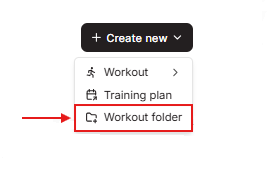
Go to Library and stay on the Workouts tab. In the top right, click + Create new and select Workout folder from the dropdown.
Step 2: Open the New Folder Dialog
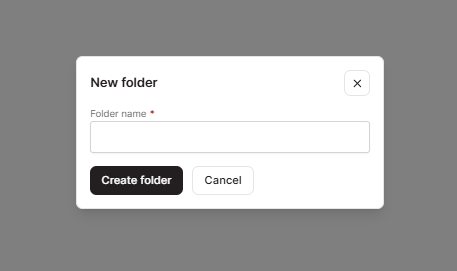
The New folder dialog opens with a Folder name field. This is where you name the folder before creating it.
Step 3: Name and Create the Folder
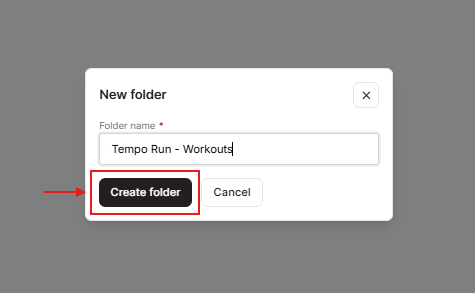
Type a name into the Folder name field, then click Create folder. To close the dialog without creating anything, click Cancel.
Step 4: Find Your New Folder
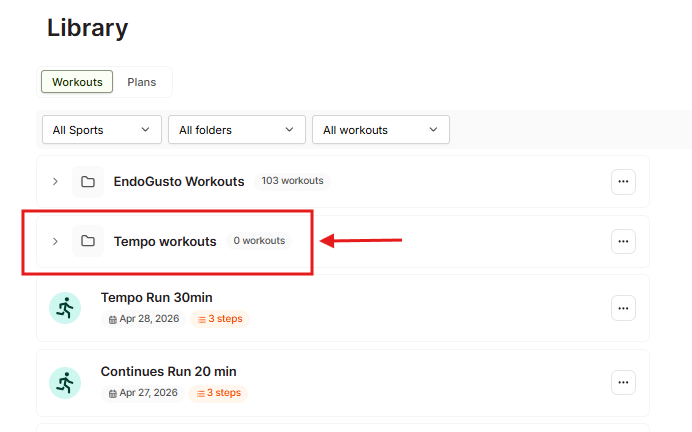
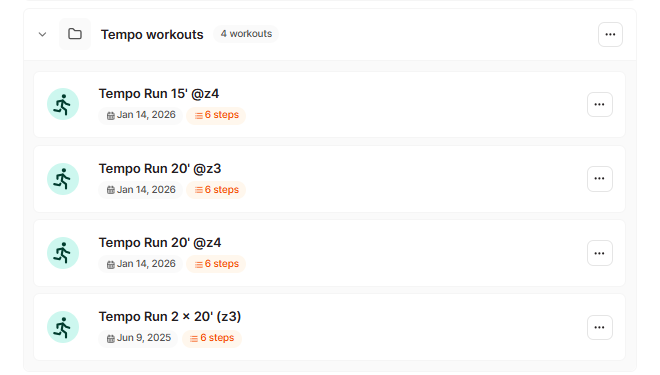
Your new folder appears in the folder list, below the default EndoGusto Workouts folder. A new folder starts empty and shows "0 workouts" next to its name. Click the arrow on the left of the folder row to expand it.
Add Workouts to Your Folder
Step 5: Open the Add Workouts Option
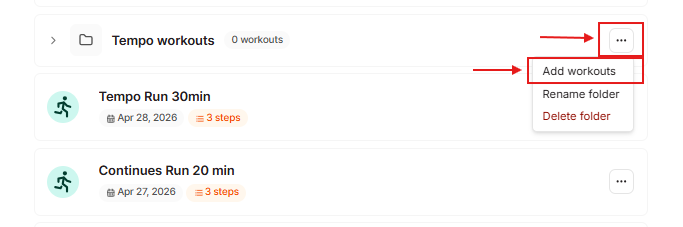
Click the ... menu on your folder's row. The menu shows three options: Add workouts, Rename folder, and Delete folder. Click Add workouts.
Step 6: Select Workouts and Add Them
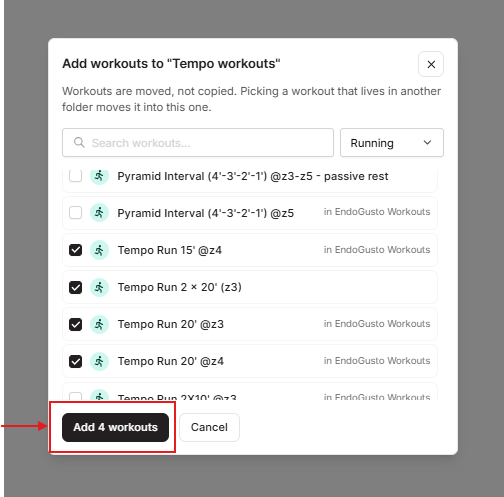
The Add workouts dialog opens and lists your workouts, each with a checkbox. Check the box next to every workout you want to move into the folder. Use the search field or the All Sports dropdown at the top to narrow the list.
As you select workouts, the button updates to show the count, for example, Add 3 workouts. Click it to move the selected workouts into your folder. To exit without moving anything, click Cancel.
Filter by Your New Folder
Once your folder exists, you can view only its workouts using the folder filter. Click the All folders dropdown at the top of the Library. It lists All folders, No folder, EndoGusto Workouts, and any folders you have created. Select your folder to show only the workouts inside it.
Tips for Coaches
- Moving a workout does not copy it. When you add a workout to a folder, it moves out of its previous folder. Each workout lives in one folder at a time, so you will not end up with duplicates.
- Group by how you coach. Folders work well for organizing by sport, training block, race prep, or athlete group. Pick a system you will recognize at a glance.
- Rename or delete anytime. The same ... menu on the folder row lets you rename or delete a folder later, so you are not locked into your first setup.
- Use the folder filter to work faster. Filtering the Library by a single folder cuts down scrolling when you are assigning workouts from a large collection.
Related article: For creating, duplicating, and deleting individual workouts in the Library, see Library Workflows.
Need help? Contact us at Support & Feedback or browse the Knowledge Base.